Managing ingest workflows
Everything you need to know to manage SIP ingests after they are uploaded
SIP view pages
The SIP view page provides a high-level overview of a given SIP and any ingest workflows that have been and their outcome. Additionally, any related packages derived from the SIP during processing are linked as well.
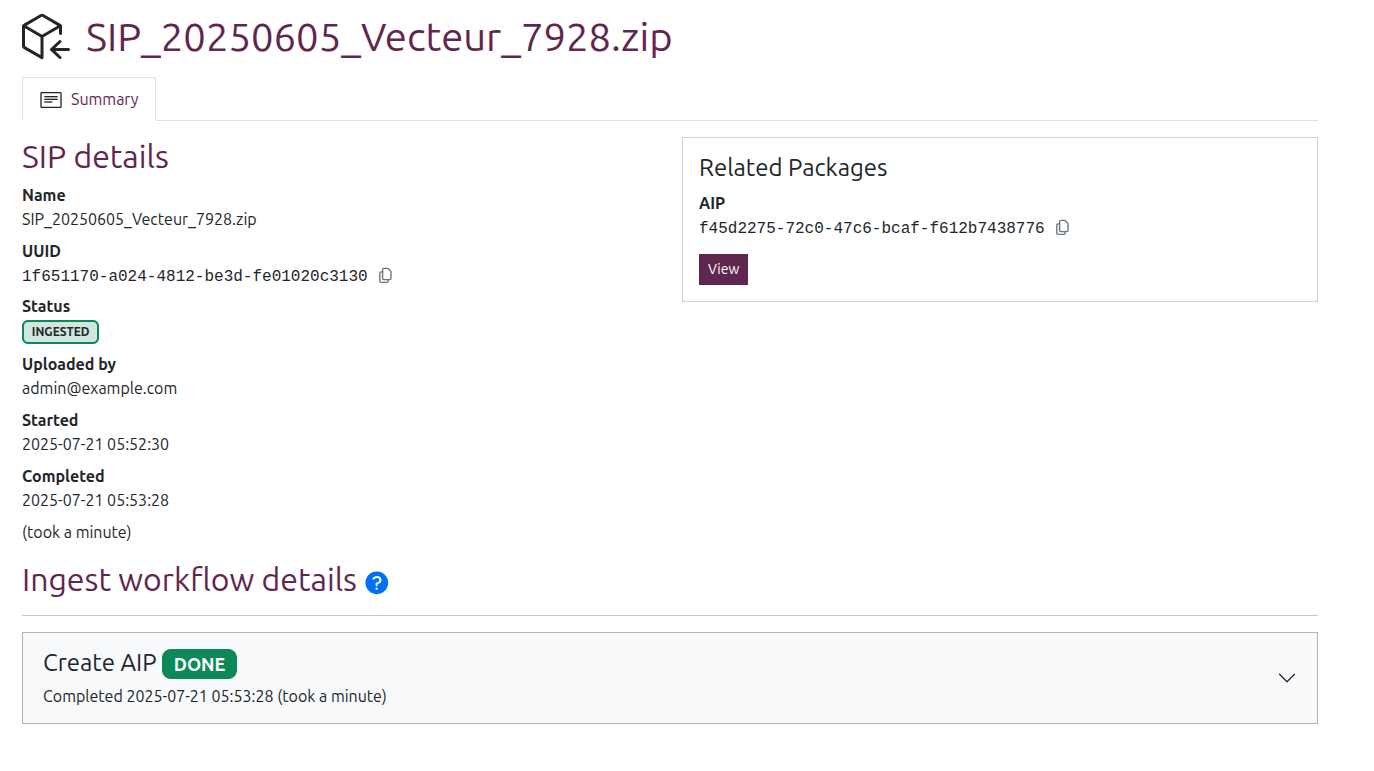
The page title will be the SIP name. The SIP UUID is used to construct the page URL. The page is then organized into 3 main sections:
SIP details
SIP details are found in the body of the SIP view page. This section provides a few high-level metadata elements about the SIP and its ingest, including:
- Name: Name of the SIP at ingest time. Should match the page title.
- UUID: The unique identifier associated with the SIP. Either extracted from the SIP metadata, or assigned by Enduro if no existing UUID is found.
Tip
You can quickly copy the UUID by clicking the icon to the right of it

- Status: The status of the SIP. Uses the same statuses as those shown on the SIP browse page..
- Ingested by: The user associated with initiating the SIP ingest. How user information displays in this field depends on whether authentication is enabled and what information is available from the provider - for more information, see: User filters and authentication configuration.
- Started: Timestamp of when the ingest workflow started.
- Completed: Timestamp of when the ingest workflow ended. An estimate of the total time of the ingest will also be shown below in parentheses.
Tip
Internally, Enduro will store timestamps in Coordinated Universal Time, i.e. UTC. However, the user interface will then render those timestamps based on your browser's or operating system's configured timezone settings.
Related packages
The related packages widget, on the right side of the SIP view page, shows any packages derived from the original upload during the ingest. This can include:
Related AIPs: If the ingest is successful, one or more AIPs will be created following ingest, depending on the ingest workflow activities.
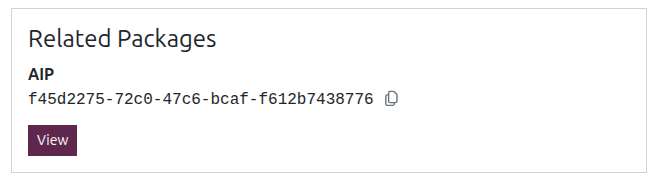
You can click the "View" button to go to the related AIP view page, where the AIP can be downloaded, deleted, and otherwise managed.
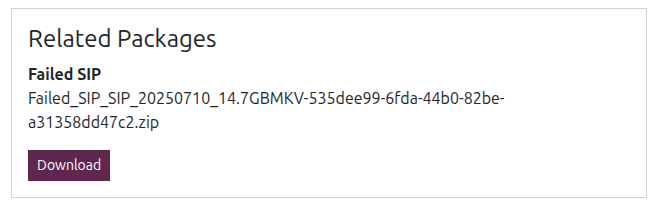
Failed SIPs: Alternatively, if the SIP encounters either a content failure
or a system error during the ingest workflow, a copy of the SIP at the time of
failure, with Failed_SIP_ appended to its name, will be shown instead. You can
click the "Download" button to download a local copy of the failed SIP for
inspection and/or fixes before reattempting ingest.
Workflows and activities
The bottom half of the SIP view page contains the Ingest workflow details. A card with summary information about the ingest workflow will be shown here, including:
- Workflow name
- Workflow status
- Completed timestamp (with an estimated duration next to it)

Click anywhere on the header card to expand it and see more information about the tasks run as part of the workflow.
Workflow task status legend
Both workflows and their component tasks have a controlled vocabulary of statuses that can tell you more about the current state or outcome of a given process.
Clicking the blue "( ? )" question mark icon next to the Ingest workflow details header will reveal a legend explaining the various task statuses and their meaning:
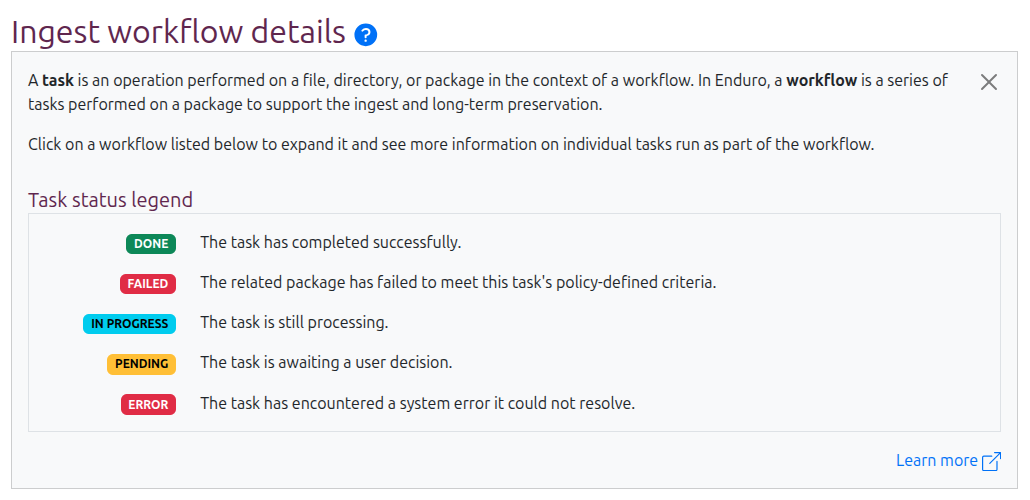
Workflow tasks can have the following statuses:
- DONE: The task has completed successfully
- FAILED: The related package has failed to meet this task's policy-defined criteria
- IN PROGRESS: The task is still processing
- PENDING: The task is awaiting a user decision
- ERROR: The task has encountered a system error it could not resolve
Workflows have their own status as well. Most of these are similar to the task statuses, with a few additional statuses:
- QUEUED: The workflow is waiting for an available worker to begin
- CANCELED: The workflow has been canceled by a user
Tip
SIPs also have their own statuses. See: SIP statuses
Errors vs failures
To help operators better understand the cause of an unsuccessful workflow, Enduro uses different statuses for a content failure and a system error.
When a task in an ingest workflow fails validation due to some element of the submitted content (e.g. SIP structure, metadata, files, etc) not matching the criteria defined in the workflow task, this is a content failure, and the related task will be given a status of: FAILED. When the workflow finishes running as far as it can, it will then be given the same failed status.
These issues are generally ones that can be fixed by the original producer or by an Enduro operator, as they relate to the contents and structure of the SIP, and not the system itself. Producers and/or operators can then choose to:
- Download the failed package from the Related packages widget
- Use the details shown in the related workflow task to better understand the issue
- Identify and fix the issue in the SIP
- Resubmit the SIP for ingest
Conversely, Enduro will use an ERROR status when a system error interrupts one or more ingest tasks, causing the workflow to halt. This might be due to network interruptions, disk space issues, hardware malfunctions, or software bugs - generally, a system administrator will be needed to resolve the issue upstream before ingest can be tried again.
Pending tasks and workflows
A PENDING task or workflow means that all workflow activity is paused, waiting for input from an operator before proceeding.
In such cases, buttons allowing an operator to input a decision are generally provided and the workflow remains paused until input is received. For example, a package deletion request initiated by an operator might then show "Approve" and "Deny" buttons in the workflow details header.
Workflow tasks
A workflow is a sequence of tasks managed by Enduro. The Ingest workflow details area will list all workflows that have been run against a given package in ascending order, with the most recent on the top.
Click anywhere on the workflow header card to expand it and see a list of all tasks run as part of that workflow. Tasks are also shown in ascending order, with the most recent tasks at the top of the list.
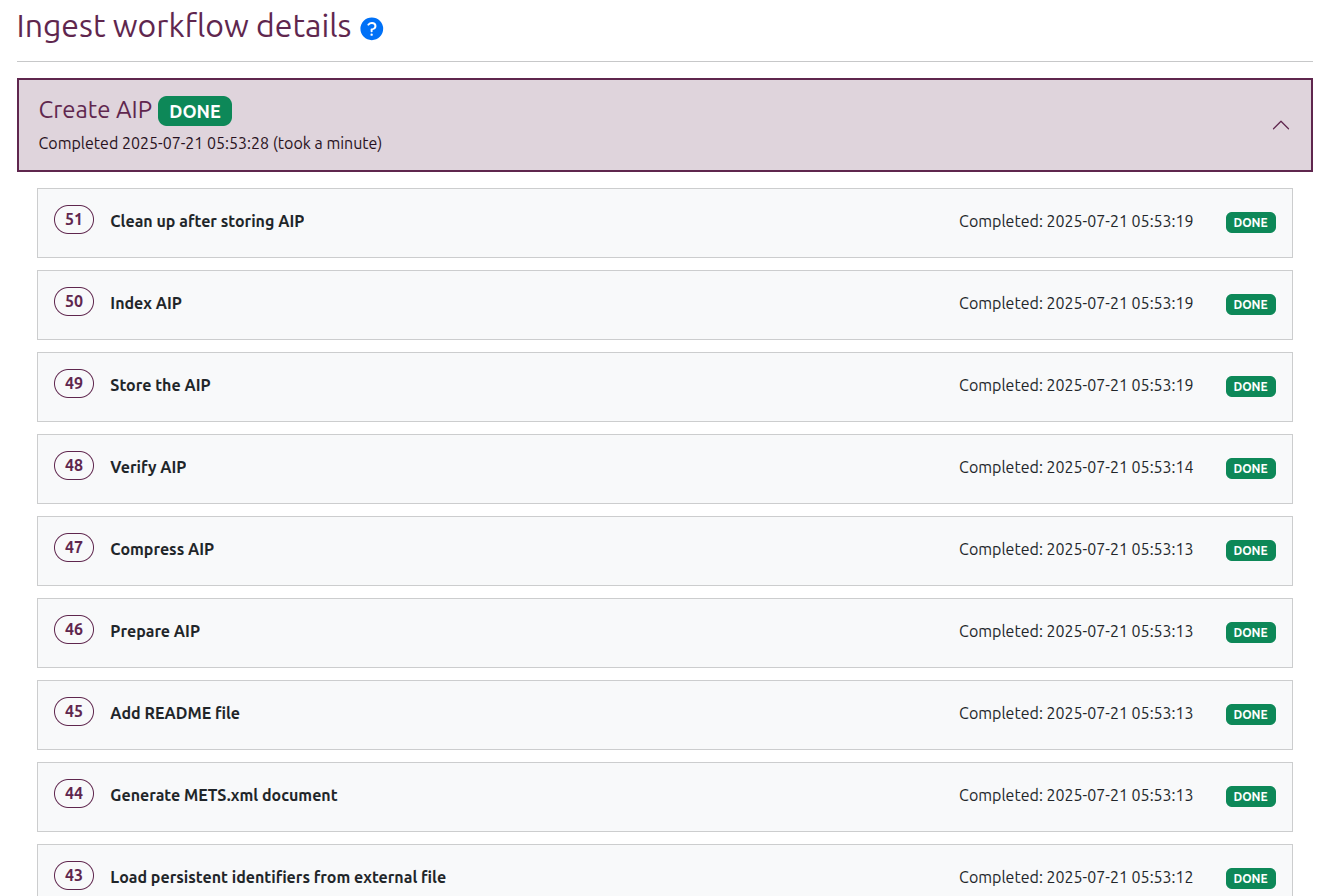
Tasks shown in this area will include both those ingest tasks performed by Enduro, as well as tasks run by the configured preservation engine if the SIP passes initial validation and transformation.
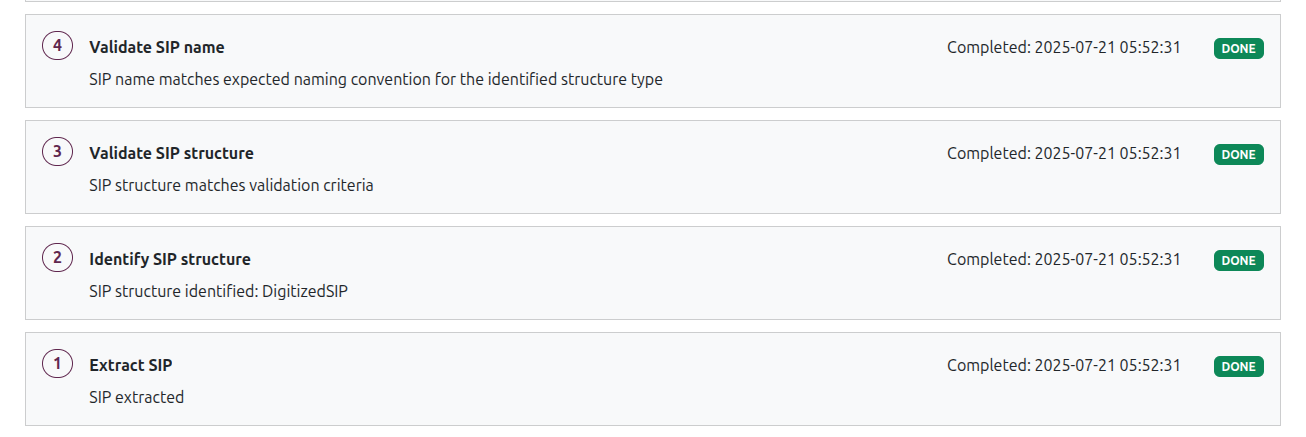
Task cards will include:
- A task number assigned by Enduro, indicating the order the task was run in the workflow
- The task name in bold, helping to explain what activity is being performed
- A status - see above for details on each task status meaning
- A timestamp - if the task has completed, this will list the completed timestamp. If the task is still running or if it does not complete successfully (i.e. a failure or error), it will show a timestamp of when the task started running
Additionally, those ingest tasks run by Enduro will include an additional description of the task outcome:
Errors and failed package downloads
If an ingest task fails or encounters an error, Enduro will attempt to continue running any remaining validation tasks to gather as much information about the SIP as possible, but will terminate the workflow before transforming the package and delivering it to the preservation engine.
The task details will then provide operators with additional context on the problem encountered.
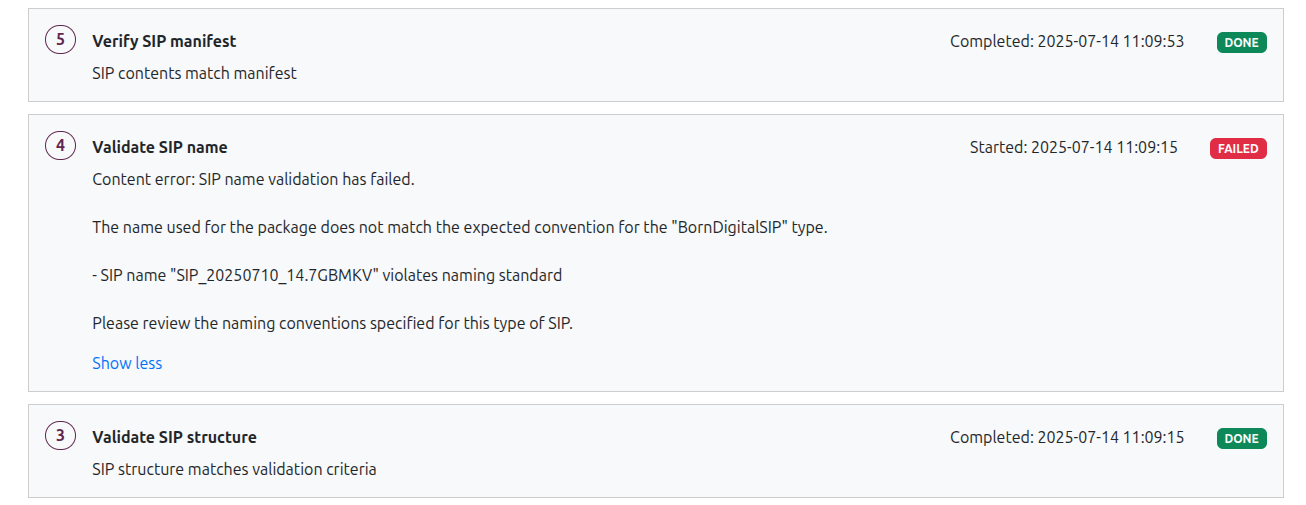
If desired, you can then download the SIP from the Related packages widget to inspect it.
Default ingest workflow
At installation, Enduro's default ingest functionality is minimal - the application can receive and unpack SIPs, validate any included BagIt bags, and then restructure and deliver the package for preservation with either Archivematica or a3m. However, Enduro's workflows are intended to be customized via the addition of child workflows, which can be designed to implement the specific ingest needs of a given organization.
The Enduro project maintains general default workflow activities in a separate code repository, called temporal-activities. An example set of child workflow activities for a specific organization can be seen in the preprocessing-sfa repository. Artefactual also maintains a template that organizations can use to create their own child workflow activities repository, called preprocessing-base.
Below is a description of what Enduro's default "Create AIP" workflow would do at installation time with no added child workflow activities configured.
Tip
Some of the activities listed in the temporal-activities repository are not used in the default ingest workflow described below. These activities can be customized and implemented as custom child workflow activities by organizations if desired - examples include:
ffvalidate, which can check the files in SIP against a configured list of allowed or disallowed file formatsremovefiles, which can be configured to automatically delete specified file types based format (useful for removing hidden files, etc)
See the temporal-activities repository for more information and examples.
Receive SIP
There are multiple ways that Enduro can be configured to receive SIPs - see Submitting content for ingest for more information.
If a SIP ingest is initiated via the user interface, either via user interface upload or selected from a SIP source location, Enduro will use the bucketdownload Temporal activity to retrieve the SIP. Otherwise, if the SIP is ingested via watched location, Enduro instead uses an internal download activity to fetch the SIP for internal processing.
Check for child workflow
Immediately after initial receipt, Enduro next checks to see if a preprocessing child workflow has been configured. This happens before attempting to determine the SIP type because Enduro's SIP types are very high-level and generic, and therefore not suitable for the level of validation that most organizations using Enduro would want. Instead, we recommend that organizations using Enduro define one or more specific SIP profiles that SIP-submitting producers can use, and then implement custom child workflow activities to validate SIPs based on these defined SIP profile criteria.
If a preprocessing child workflow is registered, its activities will be run next in their configured order. Enduro is not aware of what activities are included in a child workflow - it merely waits for the child workflow outcome before proceeding.
Important
Currently, to ensure integrity through all transfers, Enduro requires that the PIP passed to the preservation engine be a valid BagIt bag. This means that if a preprocessing child workflow is configured, then Enduro will expect the Classify SIP type activity to return "Bag" as the SIP type.
If you are adding a custom ingest child workflow to Enduro, please ensure
that the PIP is a valid Bag before it ends - the
Temporal activities
repo has a bagcreate activity you can repurpose in your custom child
activities workflow.
If you don't do this, the ingest workflow will fail after the "Classify SIP type" activity!
Classify SIP type
This is a high-level identification of the SIP type into 3 possible types:
- Unknown
- Standard Archivematica transfer
- BagIt bag
If any child worklow is configured and the SIP type is not "BagIt bag," Enduro will also fail the workflow (see above for an explanation why).
If the type found is a bag, Enduro will then validate the bag against the BagIt specification, using the bagvalidate Temporal activity. If the bag is not valid, then once again Enduro will fail the workflow.
Prepare package for preservation engine
The next set of related activities are where Enduro transforms the SIP into what Enduro calls a "Processing Information Package" or PIP. A PIP is a transitional package state in the preservation workflow intended to standardize inputs to the preservation engine, and not a package type that Enduro operators will typically interact with directly. Enduro gives it a distinct name simply to indicate that the original SIP structure may be changed during this phase to optimize preservation processing.
First, if PREMIS validation is enabled in Enduro's configuration file, Enduro
will check for a premis.xml file in the SIP. If one is found, Enduro will
validate the file against the PREMIS 3 schema using the xmlvalidate Temporal
activity.
Next Enduro will check the SIP type from the previous activity. To ensure integrity during system transfers, Enduro uses bags for package delivery to the preservation engine, so content can be validated upon receipt to ensure nothing changed or corrupted during the transfer. If the SIP type is not already a bag, then Enduro will use the bagcreate Temporal activity to bag the SIP following the BagIt specification.
Then, depending on your configuration settings, Enduro may ZIP the package using the archivezip activity. Finally, another activity is used to upload the PIP to the configured transfer source location in the preservation storage service (i.e. the Archivematica Storage Service or AMSS), and Enduro sends an API request to the preservation engine to initiate preservation processing.
Poll preservation for updates
At this point, the preservation engine will receive the PIP and perform a series of preservation tasks on the package and its contents. For more information on the types of activities that Archivematica and a3m run during preservation processing and how operators can customize preservation workflows, consult the Archivematica documentation.
While this occurs, Enduro will regularly poll the preservation engine for updates, waiting for a completed status update to be returned. If the status returned is an error, Enduro will update both the SIP status and the ingest workflow status to ERROR and then terminate the workflow.
Note
There are several activities in Archivematica that by default pause and wait for user input before proceeding. These can be automated via processing configuration - consult the Archivematica documentation for more information.
While polling for status updates, if Enduro receives a status update of "USER INPUT" (indicating that preservation processing is paused waiting for user input), Enduro will throw an error and abort the ingest workflow.
Record storage location
Once Enduro receives a "completed" status update from the preservation engine, the application will then register the AIP in Enduro's storage component. The process is a bit different depending on the preservation engine used.
If Archivematica is being used, then Enduro simply records the storage details locally for display in the Enduro interface. Alternatively, if a3m is being used, then Enduro will first upload the AIP to the configured storage location and then records the AIP storage details.
Check for post-storage tasks
Enduro's primary configuration file also includes an optional section to configure one or more post-storage child workflows. Example activities in this phase might include sending ingest or package metadata to an external system (such as an archival information system or similar), delivering email notifications, etc. When configured, the activities are triggered but Enduro does not currently wait to determine the final outcome of the post-storage worfklow.
This step is bypassed if nothing has been configured.
Perform final cleanup
Finally, Enduro will attempt to clean up any artifacts left from processing, and will update the SIP, AIP, and workflow statuses as the workflow finishes.
Any copy of the PIP left in the preservation engine's transfer source location is deleted, and Enduro's own internal processing directories are also purged. If a retention period has been configured, Enduro will start a workflow activity to clean up the related object stores when the configured time period expires.
If the ingest workflow encountered a content failure or system error, this is when a copy of the failed SIP or PIP is uploaded to the configured failed packages location, so that it can be downloaded by an operator if desired.
Enduro will then update all entity statuses (SIP, AIP, workflow) and terminate the workflow.