Submitting content for ingest
Depending on how Enduro is configured during installation, there are several different ways that operators can initiate an ingest workflow. Currently, in all cases Enduro needs one or more SIPs to initiate an ingest workflow. Below are instructions on the 3 different ways that operators can submit SIPs for ingest in Enduro.
Prepare digital objects
Digital objects and their metadata can be packaged in a few different ways for
upload to Enduro. a3m and Archivematica are both
format-agnostic preservation engines, meaning that they can accept any file you
pass for processing. A single SIP can be homogenous or it can be a mix of many
different file formats. In all cases, the digital objects must be packaged
together as either a .zip, .tgz, or .tar.gz.
a3m reuses two of the transfer types from Archivematica - zipped directory and zipped bag. a3m will automatically recognize the transfer type and adjust its processing workflow accordingly.
-
Zipped directory: digital objects that have been packaged together using the
.zip,.tgz, or.tar.gzpackaging format. When a zipped directory transfer starts, the zip will be unpacked. The internal structure of a zipped directory transfer can either be a loose collection of files, or it can include structures like a metadata directory. -
Zipped bags: digital objects that have been packaged according to the BagIt File Packaging Format, colloquially known as bags. Bags must be packaged together using the
.zip,.tgz, or.tar.gzpackaging format. Enduro will validate the bag early on in the ingest workflow, looking at manifest information created during the bagging process such as checksums and the payload oxum.
For more information on how a3m/Archivematica implement the BagIt specification, please see Unzipped and zipped bags in the Archivematica documentation.
Upload SIPs via the user interface
Enduro includes an upload page that allows operators to upload SIPs for ingest directly via the web browser. A system administrator can configure a SIP upload size limit — when configured the browser will check the package size upon submission and return an error to the operator if the package exceeds the configured limit.
To upload SIPs via the user interface:
-
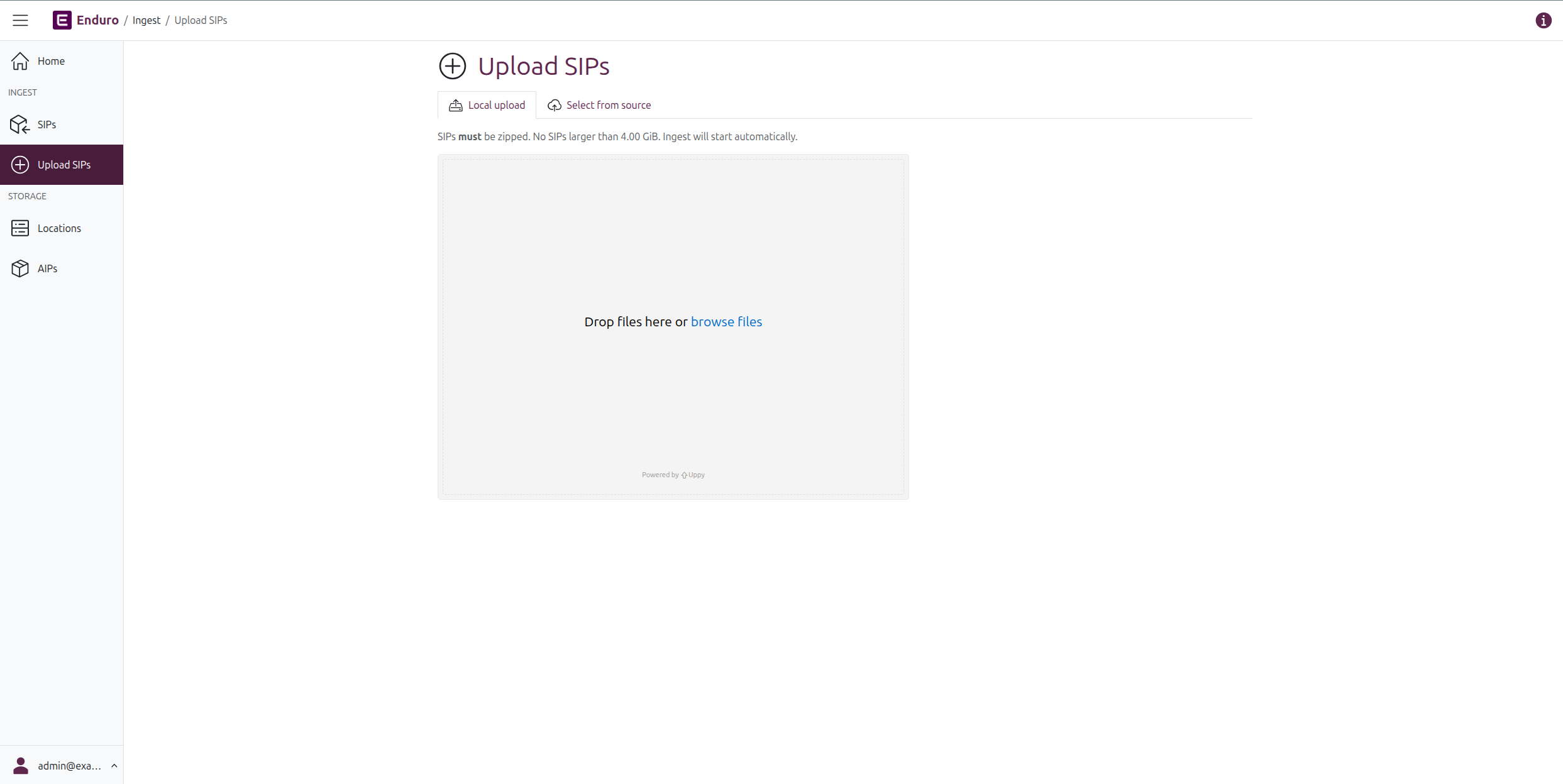
Using the navbar on the left side of the screen, click on "Upload SIPs." Enduro will redirect you to the SIP upload page.
-
For upload via the user interface, make sure the tabs at the top of the page are set to display the "Local upload" option.
Warning
SIPs must be zipped to be uploaded via the user interface. A reminder of this and the configured upload limit will be displayed above the upload widget.
-
You can either drag and drop packages from your local computer into the grey upload staging area, or click the "browse files" link in the upload area to open a file explorer.
Tip
Multiple SIPs can be uploaded at once (up to the upload limit defined on the page), but once ingest is initiated, each SIP will be part of its own separate ingest workflow.
-
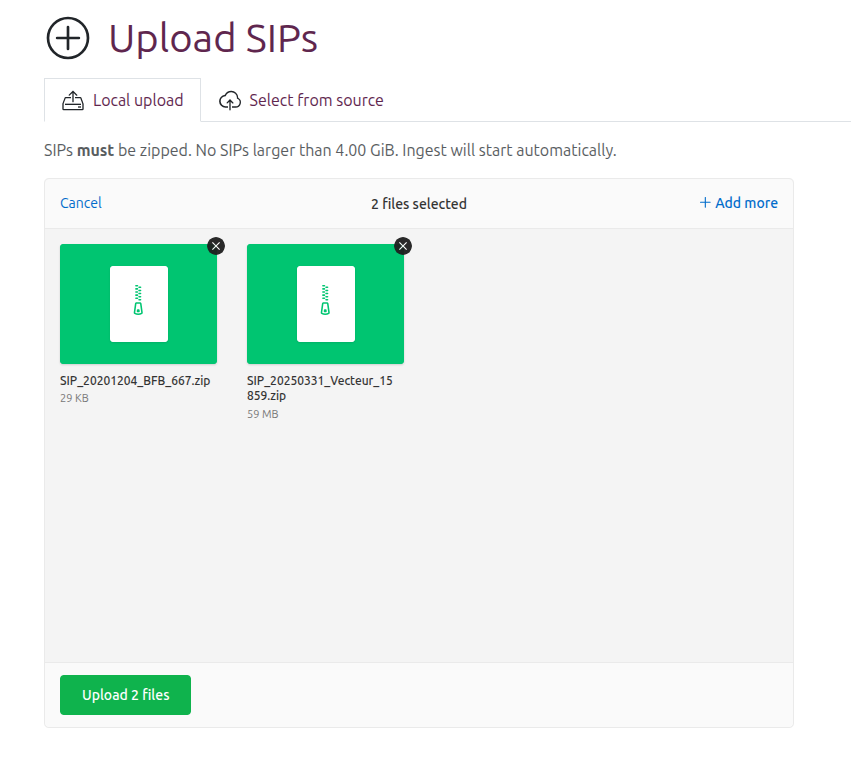
Upload using this method is 2-staged. After a SIP is added, it will be shown in the upload staging area as a green ZIP package, with minimal metadata showing the package name and size.
-
At this point, you can:
- Click the X icon next to any SIP to remove it from the upload staging area
- Add additional packages for ingest, either by:
- Dragging and dropping more SIPs for ingest directly into the staging area, or
- Clicking the "+ Add more" link in the top-right corner of the upload widget
- Cancel the ingest and clear all staged packages by clicking the "Cancel" link in the top-left corder of the upload widget
- Start the ingest of SIPs already in the staging area, using the green button at the bottom of the upload widget
Note
Navigating away from the upload page at this point will also cancel the ingest and clear the staging area.
-
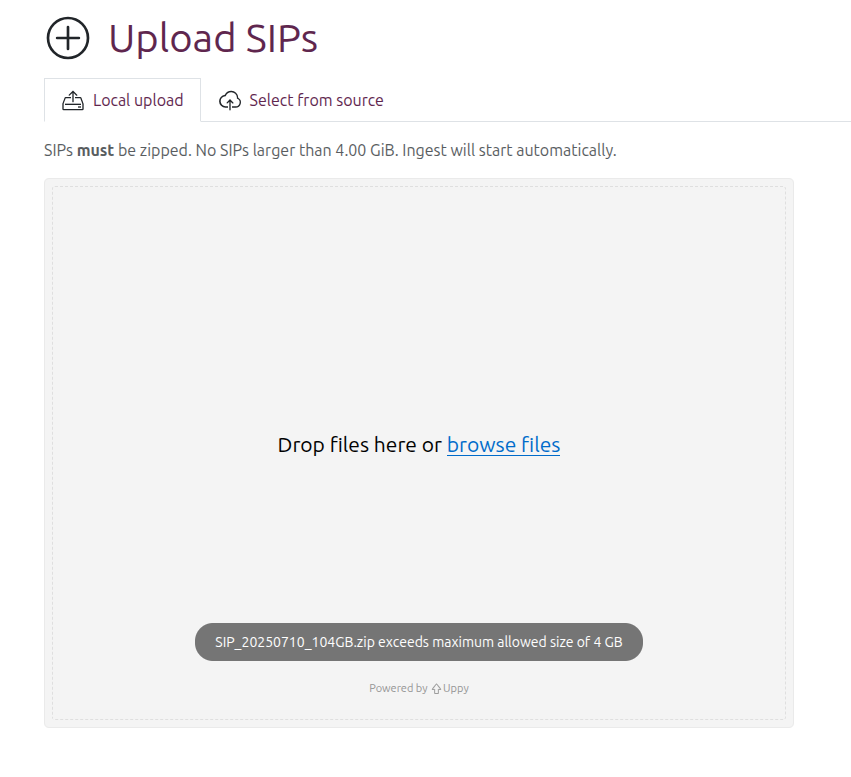
If a package that exceeds the configured upload limit is added, instead of showing it in the staging area, Enduro will display a warning, even if there are already packages in the staging area:
Starting ingest
-
When you're finished adding SIPs, you can now start ingest by clicking the green button at the bottom of the upload widget.
-
After a moment, the page will reload and you will be redirected to the SIP browse page, where any new worklfows started by the upload will be visible at the top of the browse results. Each SIP uploaded will be ingested via its own separate workflow.
Initiate ingest using SIPs uploaded to a source location
Another method of initiating ingest is by selecting packages previously uploaded to a source location. A SIP source location is an object storage location or filesystem directory for the deposit of SIPs that can then be ingested by an Enduro operator. The SIP source configuration must be set up by a system administrator. Unlike a watched location where an action is automatically triggered upon deposit, a source location is intended for asynchronous manual follow-up. In this case, Enduro operators can select zipped packages found in a configured source location and initiate ingest via the user interface.
The deposit or upload process will depend on the source location used.
To initiate ingest using SIPs in a source location:
-
Using the navbar on the left side of the screen, click on "Upload SIPs." Enduro will redirect you to the SIP upload page.
-
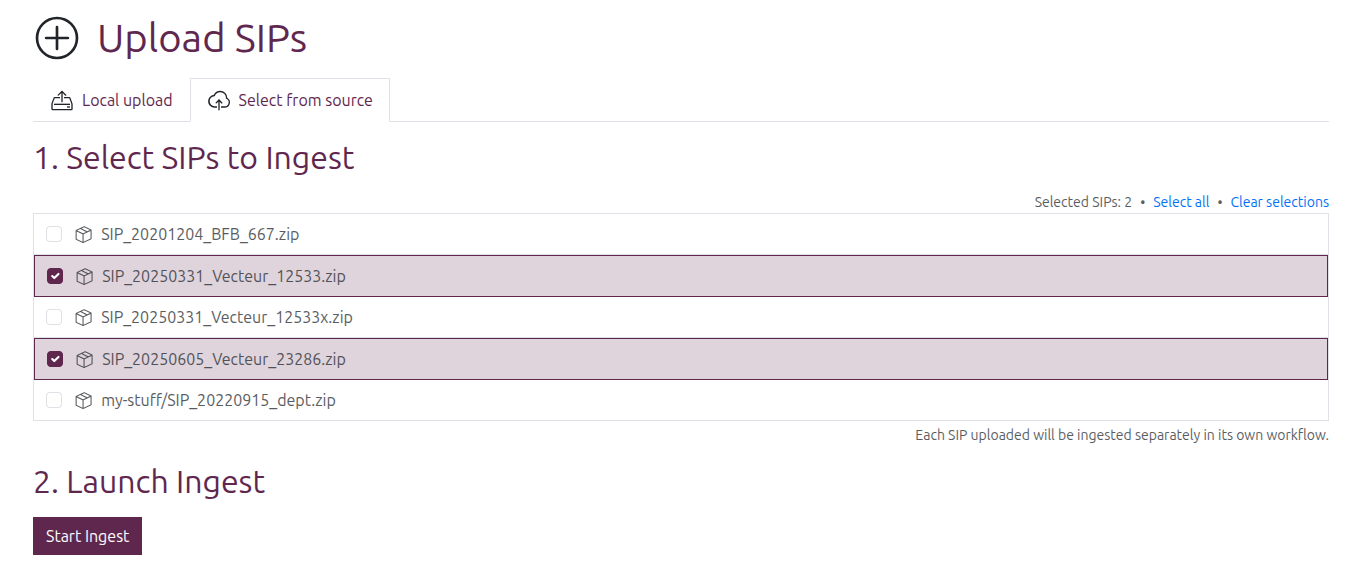
For SIP ingest from a source location, click the "Select from source" tab at the top of the page. Enduro will display a picker interface showing any zipped packages that have been added to the configured source location
Warning
SIPs must be zipped to be properly ingested into Enduro. You cannot start an ingest workflow from an unzipped directory.
SIPs may be placed in subdirectories, but these subdirectories will only be visible as part of the filepath to a file in the directory (such as a ZIP file) - see for example the last SIP shown in the screenshot below, which is in a
my-stufffolder in the configured source location.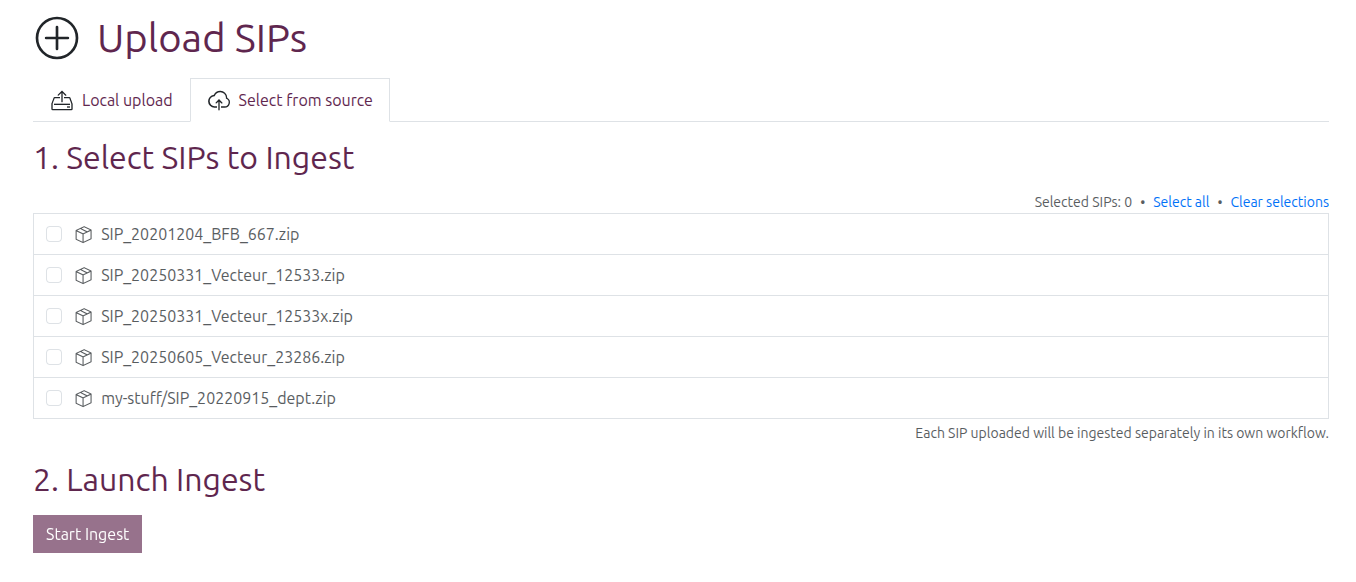
-
The "Start ingest" button at the bottom of the configuration page will be disabled until at least one SIP is selected from the picker. You can use the checkboxes next to the SIPs listed to select one or more SIPs for ingest.
A count of selected SIPs will be shown above the right side of the picker. You can click the "Select all" link to select all SIPs in the source location, and/or use the "Clear all selections" link to uncheck any previously selected SIPs.
-
When you are happy with your SIP selection, click the "Start ingest" button at the bottom of the page.
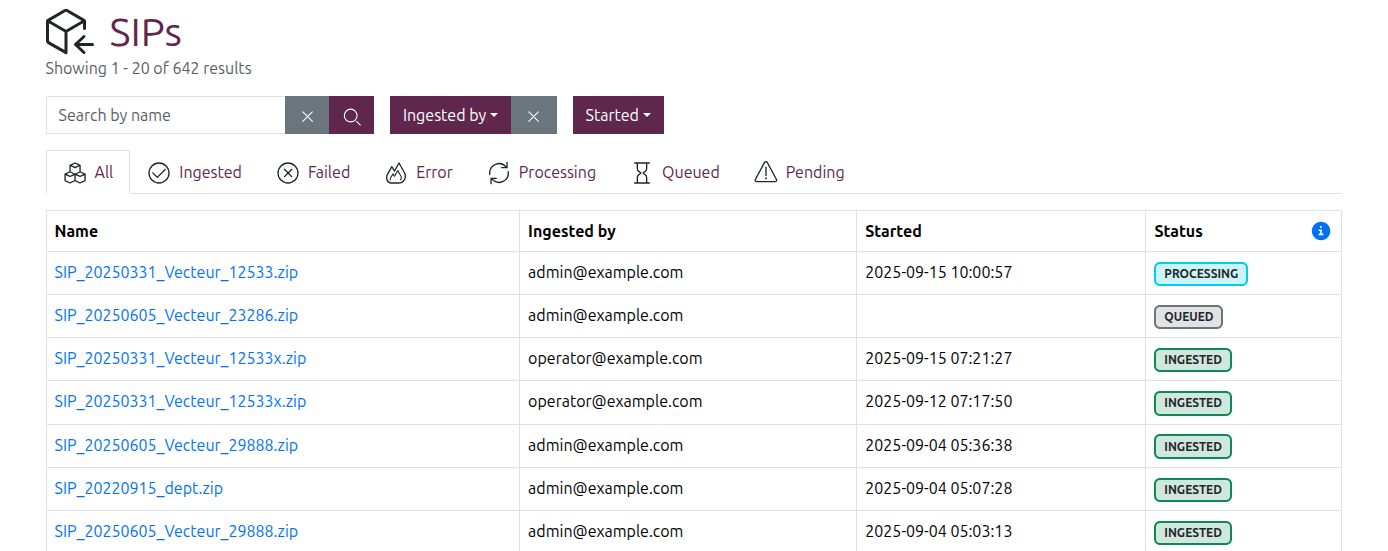
After a moment, the page will reload and you will be redirected to the SIP browse page, where any new worklfows started by this process will be visible at the top of the browse results. Each SIP uploaded will be ingested separately in its own workflow.
Initiate ingest via a watched location upload
It is also possible to configure Enduro to use a watched location for ingest. The watched location configuration must be done by a system administrator.
Once configured, any time a new package is added to the location, Enduro will automatically initiate an ingest workflow. Filesystem watched locations can detect files or directories that are moved into the watched path. The watcher reacts when the top-level file or directory appears; it does not wait for contents that are still being copied. Stage the SIP elsewhere, then move or rename the completed archive or full directory into the watched location.
The legacy object-store watcher consumes MinIO Redis notification events for zipped packages. Existing deployments can continue using it with MinIO-compatible event publishers. Azure Blob Storage and generic S3-compatible buckets are not supported as watched locations; use direct upload or SIP source locations for those sources.
Note
Legacy object-store watched-location packages must be zipped. Filesystem watched locations may submit either a SIP archive file or a directory.