Overview and getting started with Enduro
Enduro is a new application under development by Artefactual Systems. Designed following digital preservation standards and best practices, our goal with Enduro is to ensure records of the past can be cared for in the present and trusted in the future.
The application borrows terminology from the digital preservation domain - a full glossary of terms and how we define them in the Enduro project can be found at:
Originally created as a more stable replacement for Archivematica’s automation-tools library of scripts, Enduro has since evolved into a flexible tool to be paired with preservation applications to provide initial ingest activities such as content and structure validation, packaging, and more. To learn more about the components that make up Enduro, see:
Below you'll find basic instructions on how to login to the application and an overview of some of the first pages you will encounter. While the Enduro user interface provides a single seamless experience for operators, behind the scenes the code is organized into functional modules based on different stages of the digital preservation lifecycle. Currently these include:
- Ingest
- Storage
Logging in
Depending on the installation process, the application can be configured to require no authentication. However, Enduro optionally supports external OpenID Connect (OIDC) compatible providers for authentication and access control. Users can authenticate against the external provider from the dashboard - if authentication has been enabled, then when first arriving, users will see a sign-in button:
When clicked, users will be redirected to the provider's authentication page. After successfully submitting valid credentials, users will then be redirected back to Enduro's landing page.
Welcome to Enduro!
User filters and authentication configuration
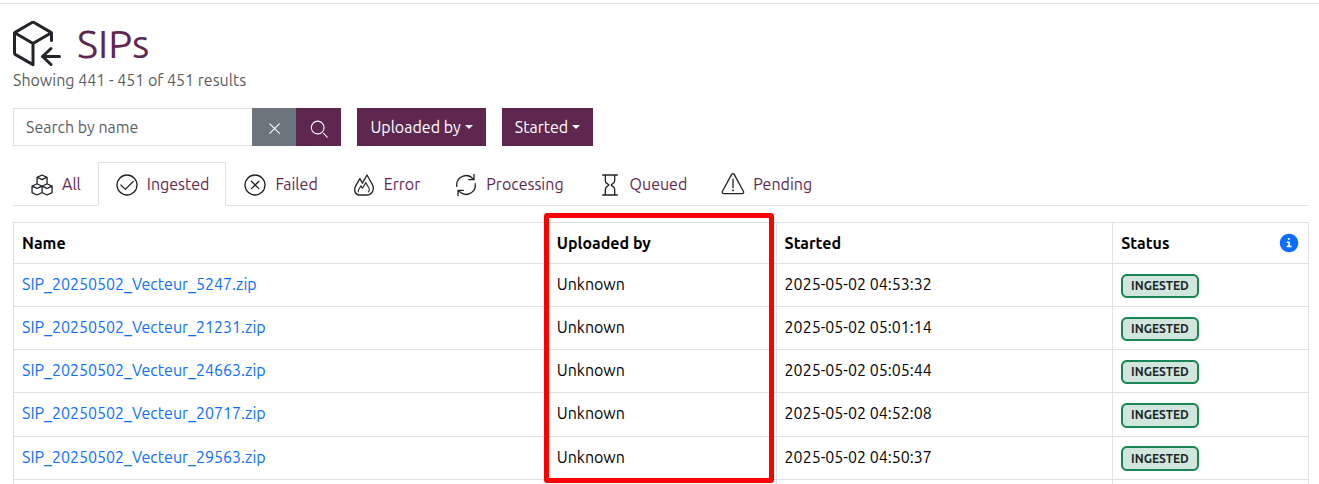
There are several places in Enduro where, if user information is available, Enduro will display it in the user interface as an "Ingested by" element. Examples include:
- The results column on the SIP browse page
- The user filter on the SIP browse page
- The user metadata element on the SIP details page
However, what and how information is displayed in these elements depends on whether or not authentication is enabled and if so, what user details are available from the authentication provider.
If authentication is enabled, then Enduro will first try to show the user name. If a name is not available from the provider, an email address will be used instead, and if neither are provided then Enduro will use a locally generated UUID to uniquely identify the uploader.
If authentication is not enabled and/or the identity of the uploader cannot be known (for example, ingest is started via a watched location upload), Enduro will simply show "Unknown" in the Ingested by field.
Landing page and About widget
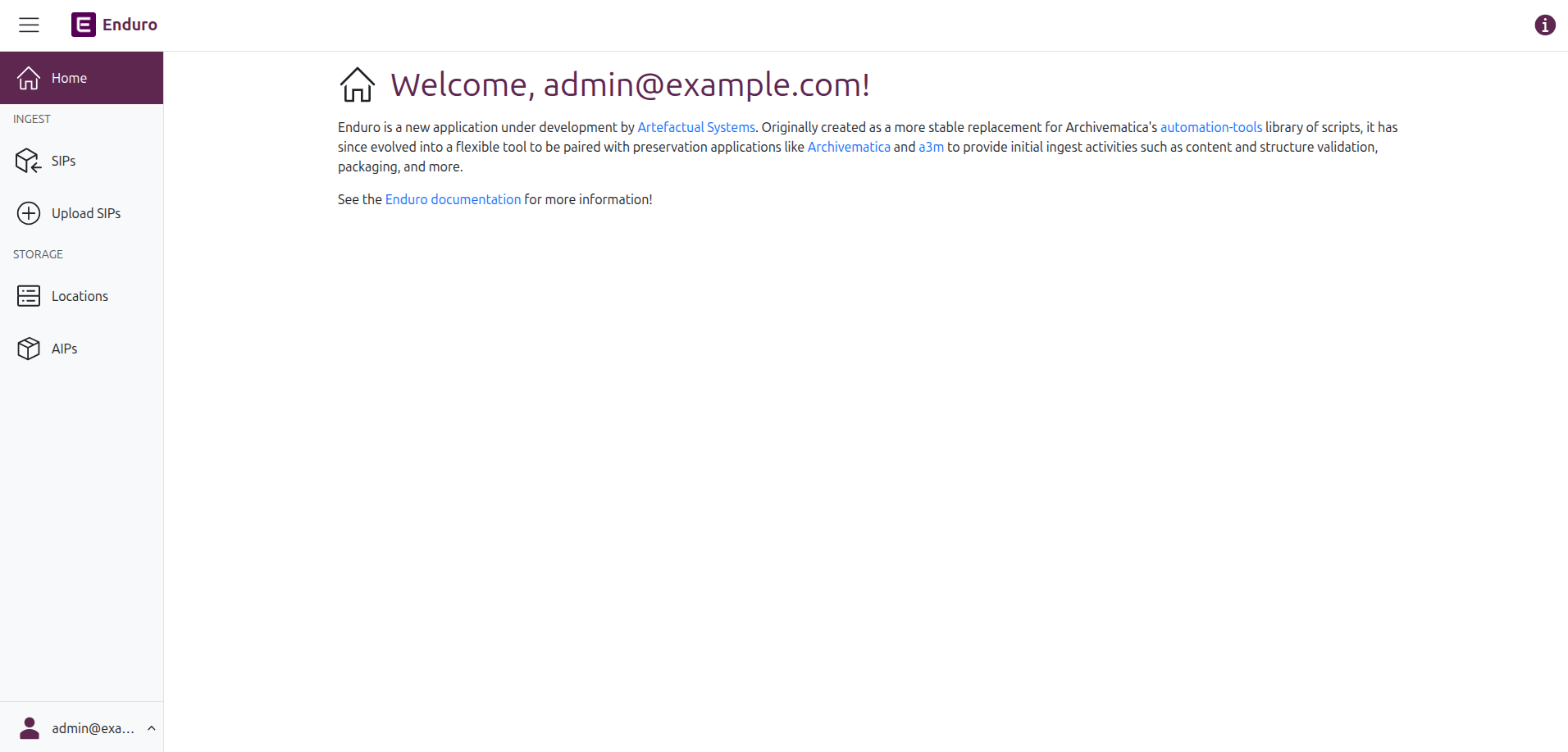
The landing page is the first thing that operators will encounter after logging in. It contains a brief introduction to the application, including a link to the Enduro documentation.
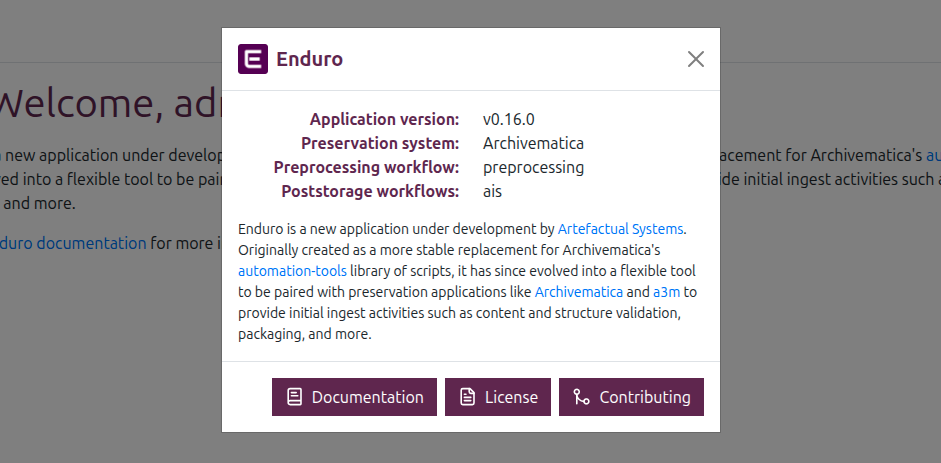
Clicking the info icon in the top right corner of the Enduro header bar will open an About widget with further information and links, including the application version, the configured preservation engine, the name of the workflows in use, and more.
Navigation
The Navbar on the left side of the application is the primary method of navigation in Enduro. This navbar is available on all pages, and users can return to the landing page at any time, either by clicking "Home" in the navbar menu, or by clicking the Enduro logo above the navbar.
As users navigate to different pages using the navbar, the header will show a breadcrumb trail to orient the user. The breadcrumb trail can also be used for navigation - clickable pages (such as the "SIPs" link in the image below) are shown in purple, while informational separators that cannot be navigated to (such as the "Ingest" part of the breadcrumb trail in the image below) are shown in grey.

The navbar can also be expanded or collapsed to increase screen space. To do so, click the three lines in the header bar next to the Enduro logo:
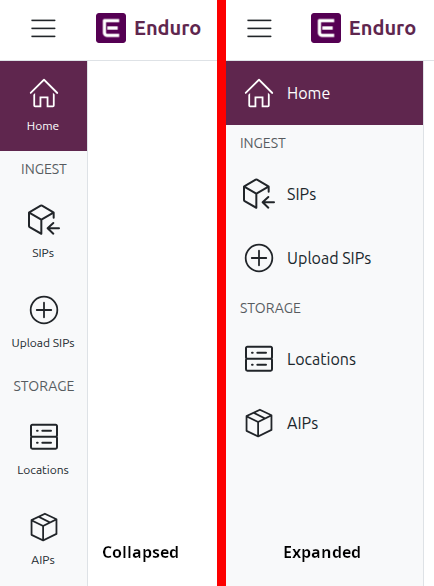
The Enduro navbar, shown in its collapsed and expanded states
Logging out
To logout of Enduro, click the username shown at the bottom of the navbar. This widget will expand to show a Sign out button - click this to exit the application:
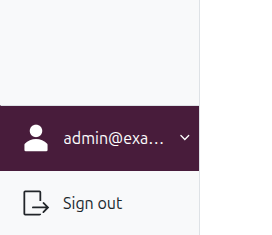
The logout button is in the user menu at the bottom of the navbar