Searching and browsing AIPs
Everything you need to know about AIP discovery in Enduro
Browse AIPs
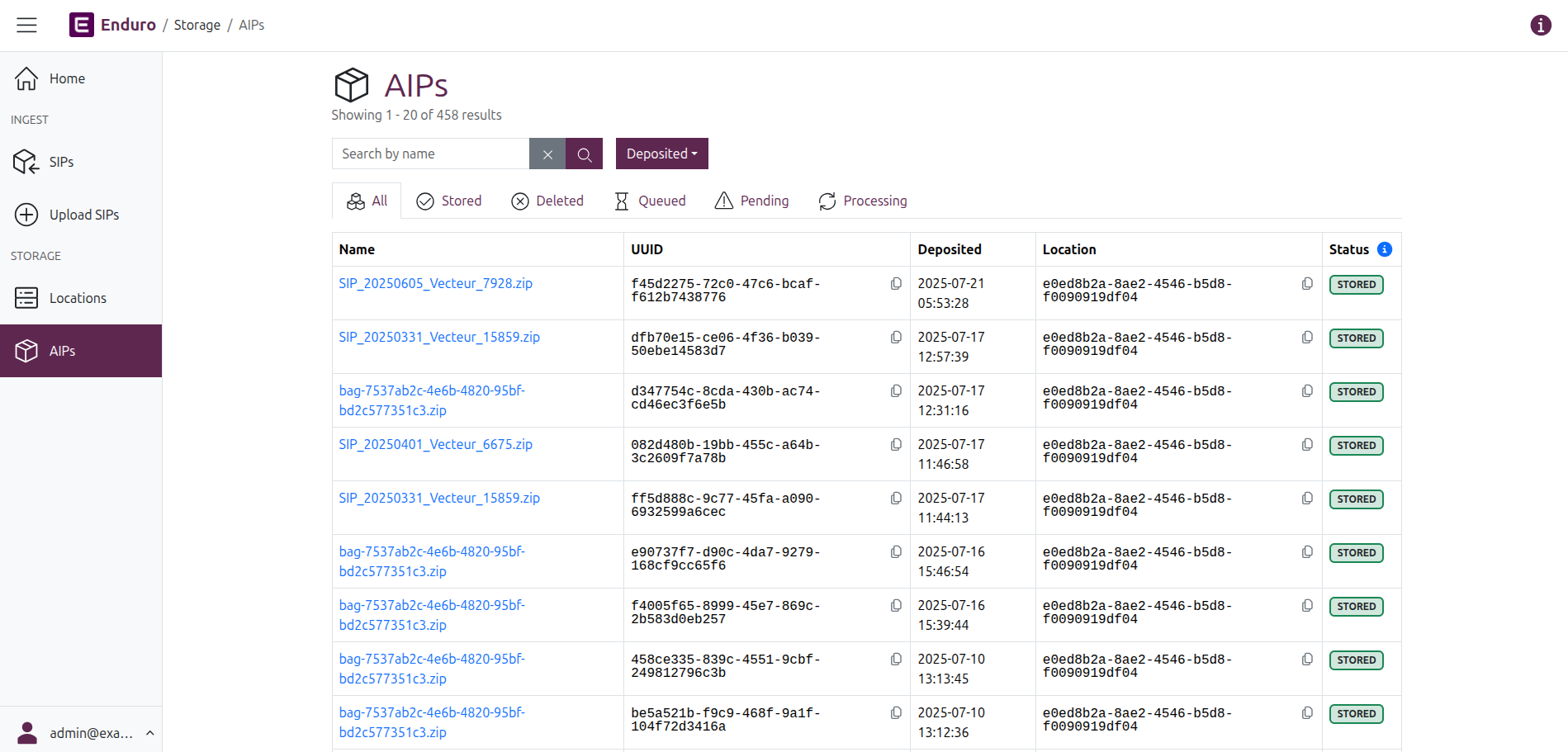
You can navigate to the AIP browse page from anywhere in the application by clicking the "AIPs" menu link under the Storage heading in the navbar on the left side of the screen. Enduro will then redirect you to the AIP browse page:
Browsing results
By default, the AIP browse page will show up to 20 results per page. A count of the currently shown and total AIP results will be shown at the top of the page, beneath the page title.
If you have stored more than 20 AIPs, a pager will be included at the bottom of the page, with a results count listed beneath it. The pager works the same as it does in the Ingest pages - for more information, see:
AIP results are presented in a table with the following columns:
- Name: The name of the AIP. If only 1 AIP was derived from your SIP, then the AIP name will be identical to the original SIP's name. The AIP name will also be shown in the browse results as a hyperlink - click it to go to the related AIP view page.
- UUID: The unique identifier generated for the AIP during the preservation workflow.
- Deposited: A timestamp of when the AIP was first stored, following the successful conclusion of the preservation workflow. Internally, Enduro will store timestamps in Coordinated Universal Time (UTC). However, the user interface will then render those timestamps based on your browser's or operating system's configured timezone settings.
- Status: The current status of the AIP.
AIP statuses
Clicking the blue ( i ) info icon to the right of the "Status" column header in the browse results will display the AIP status legend:
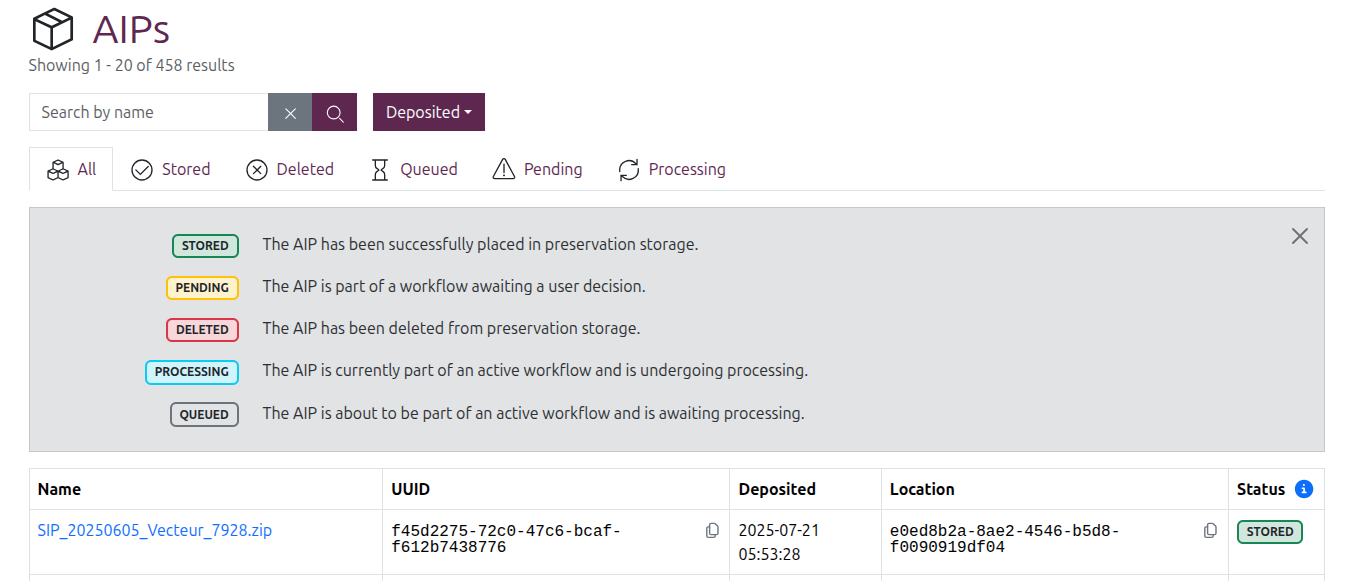
AIPs can have the following statuses:
- STORED: The AIP has been successfully placed in preservation storage.
- PENDING: The AIP is part of a workflow awaiting a user decision.
- DELETED: The AIP has been deleted from preservation storage.
- PROCESSING: The AIP is currently part of an active workflow and is undergoing processing.
- QUEUED: The AIP is about to be part of an active workflow and is awaiting processing.
Tip
Workflows and tasks also have their own statuses - Enduro uses the same controlled vocabulary of statuses for workflows and tasks in both the Ingest and Storage domains. For more information, see:
DELETED AIP status
It is possible in Enduro for an AIP to be deleted from preservation storage, but a record of it to remain in in the AIP results.
To ensure accurate audit logging and to maintain the preservation chain of custody from ingest to final disposition, Enduro will retain a record of deleted AIPs in its database even after a deletion workflow has been run. After the deletion workflow has concluded successfully, the AIP will be given a DELETED status, but it will still appear in AIP browse results and have its own view page.
To see a list of deleted AIPs still listed in Enduro, you can use the AIP status filters to limit browse results to show only deleted AIPs.
PENDING AIP status
A PENDING status on an AIP means that the package is currently part of an ongoing workflow, but all workflow activity is currently paused to wait for input from an operator before proceeding. See the Viewing and managing AIPs page for more information and examples.
An operator can use the AIP status filters to limit browse results to show only those AIPs awaiting a user decision.
Searching and filtering
The AIP browse page also includes a basic AIP search box and some filters that can be applied to limit the results shown.

AIP search
To perform a search, enter a term in the search box and then either press enter or click the purple button with the magnifying glass icon. Once entered, the count of results at the top of the page will update based on the outcome of the search.
Clicking the grey button with the X icon will clear the search box and refresh the results.
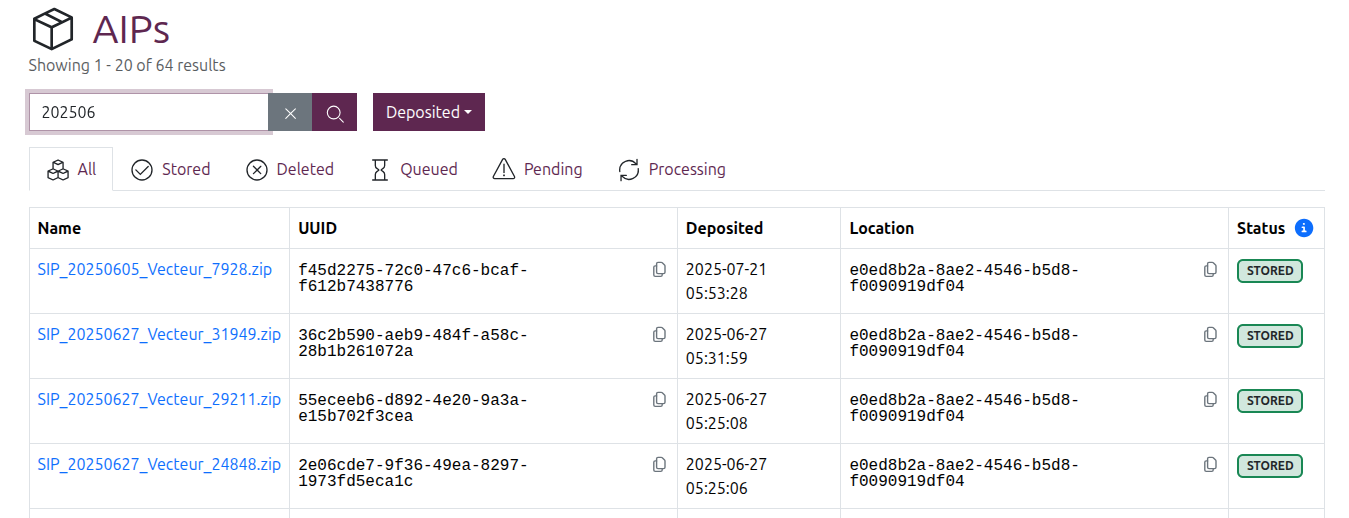
Currently, the AIP search will only search against AIP names. Enduro will
return matches from any part of the name - so for example, searching for
star would return titles that include "start," but also "restarting,"
"morningstar," etc.
Important
Searches are CASE SENSITIVE. Meaning a search for FEB would return
AIPs whose names include "FEBRUARY" but not "February," "feb," or any other
casing variant.
If you are not sure of the results you're seeking in advance, you may want to try your search with different casings to ensure you've found all relevant packages!
Filter by AIP status
AIP browse results can be filtered by status by clicking on one of the tabs shown above the results table. By default Enduro will show all results.
Clicking on one of the other tabs will immediately limit the results to those AIPs with a matching status, and the result count at the top of the page will also update.
Filter by AIP deposit time
AIP browse results can also be filtered by the time the AIP was stored.
Click the "Deposited" filter button to reveal the drop-down menu and configuration options. The filter includes a number of preset time ranges, as well as the option to enter a custom range.
The preset start time range options include:
- The last 3 hours
- The last 6 hours
- The last 12 hours
- The last 24 hours
- The last 3 days
- The last 7 days
To apply one of the preset ranges, simply click the "Select a time range" drop-down and select one of the values. The "Started" filter button text will update to show your selected time range, and the results will be filtered immediately.
Alternatively, to configure a custom range, use the "From" and "To" fields in the drop-down menu. Clicking into either field will display a calendar widget that can be used to configure your time range.
In the calendar widget you can click on:
- Any date in the calendar to select a day
- The month shown at the top of the calendar, to reveal a month picker
- Alternatively, you can use the < Back and > Forward arrows to shift the displayed calendar forward or back by one month
- The year shown at the top of the calendar, to reveal a year picker
- The hour or minutes shown below the calendar, to show pickers for
these
- Alternatively, hovering over the lines above and below the time elements reveals them to be up and down arrows - click these to increment the time forward or back
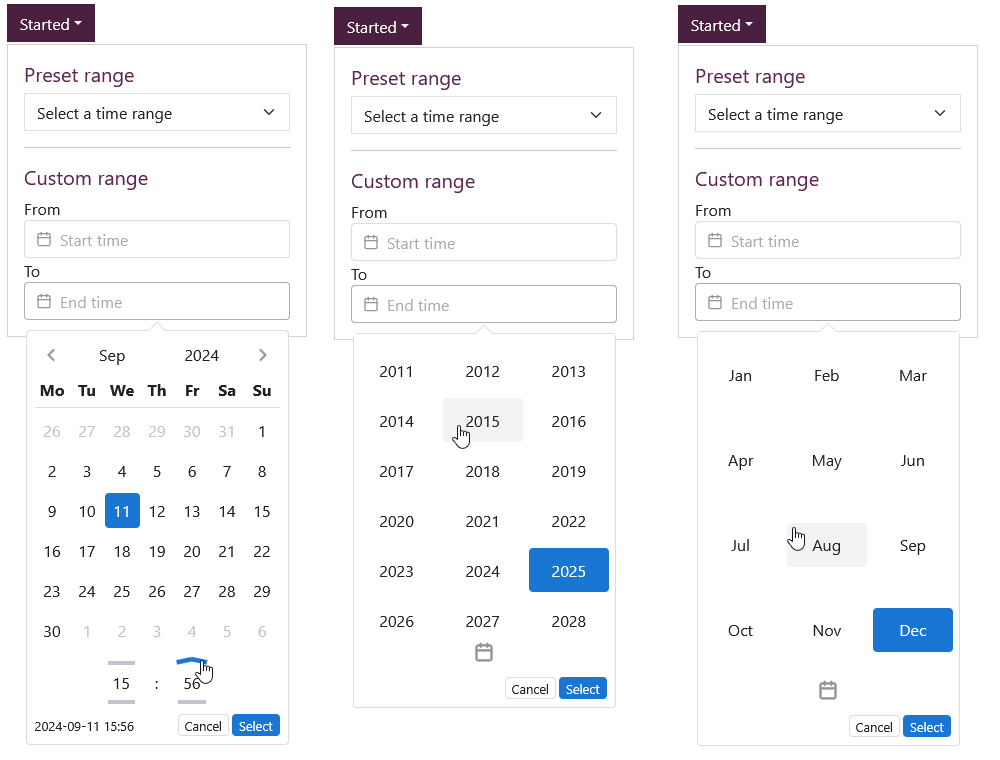
The calendar widget provides a number of different ways to configure your range
As you configure your range, a preview is shown in the bottom left corner of the calendar widget. You can click "Cancel" to clear all previous selections and close the calendar widget, or click the "Select" button in the bottom right of the widget to finalize your range.
Tip
You don't have to configure both "From" and "To" fields to filter results. For example, to see all AIPs stored since the start of the year, you can set the "From" field to January 1 of the current year, and leave the "To" field empty.
Once your range is configured, the Deposited filter button text will display the word "Custom" to indicate that a custom range is applied, and results will be filtered immediately.