View and manage AIPs
Everything you need to know about long-term preservation in Enduro
AIP view pages
The AIP view page provides a high-level overview of a given AIP, its status in Enduro, and its current storage location.
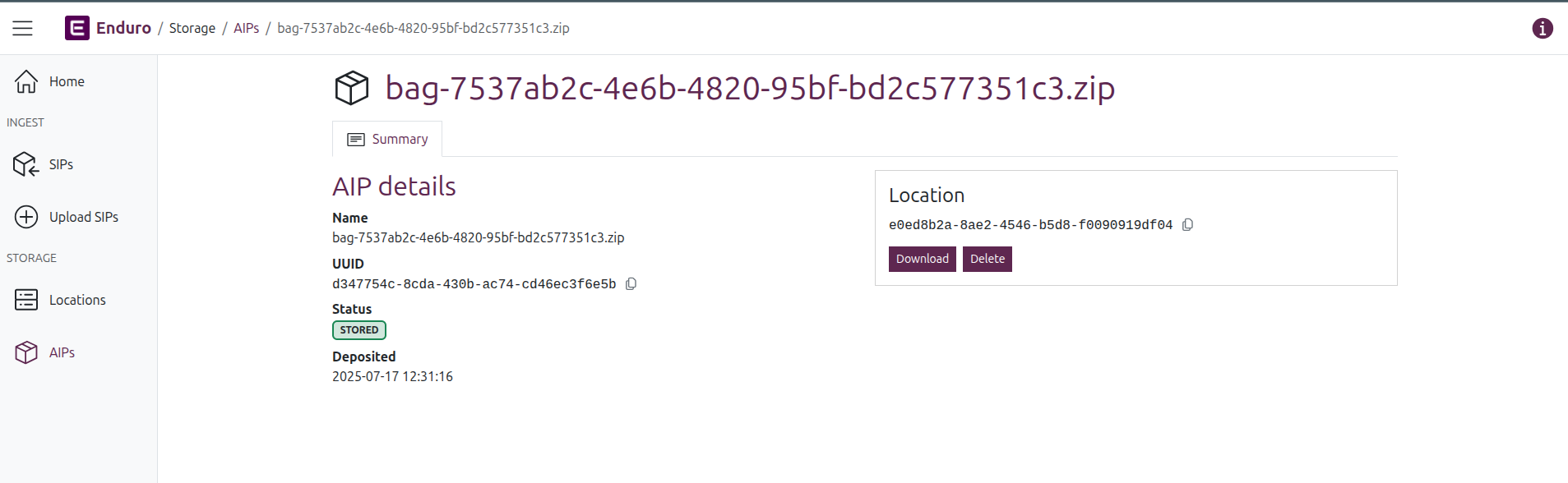
Additionally, if any workflows have been run since the AIP's deposit in the storage service, Enduro will show related workflows and their outcomes below the AIP details.
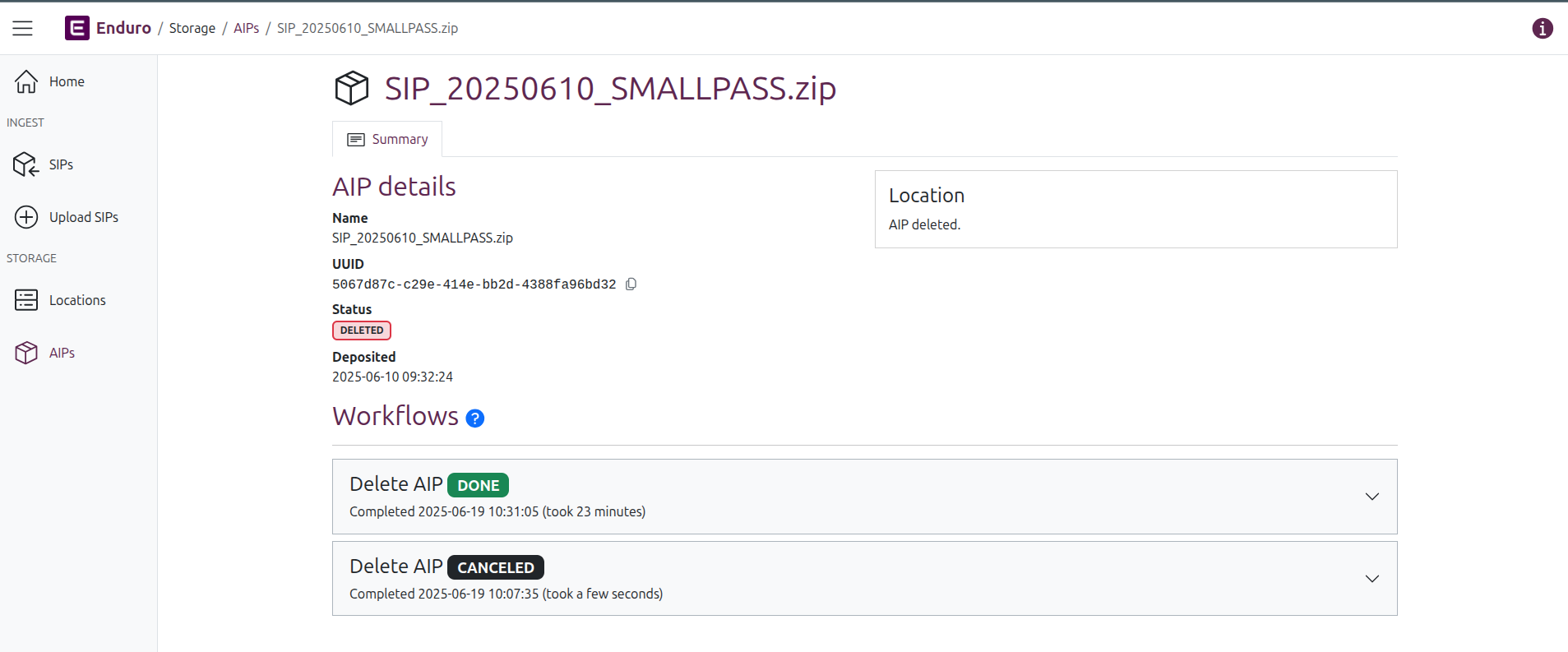
You can navigate to the view page of any stored AIP by finding it listed in the AIPs browse page results and then clicking on the hyperlinked AIP name. Enduro will redirect you to the view page for the selected AIP.
The page title will be the AIP name. The AIP UUID is used to construct the page URL. The page is then organized into 3 main sections:
AIP details
AIP details are found in the body of the AIP view page. This section provides a few high-level metadata elements about the AIP, including:
- Name: Name of the AIP at deposit time. Should match the page title. Also, if only one AIP was derived from the original SIP ingested to create it, then the AIP name will be the same as the SIP name.
- UUID: The unique identifier assigned to the AIP during preservation.
Tip
You can quickly copy the UUID by clicking the icon to the right of it

- Status: The status of the AIP. Uses the same statuses as those shown on the AIP browse page - see: AIP statuses.
- Deposited: A timestamp of when the AIP was first stored, following the successful conclusion of the preservation workflow. Internally, Enduro will store timestamps in Coordinated Universal Time (UTC). However, the user interface will then render those timestamps based on your browser's or operating system's configured timezone settings.
AIP location
The location widget, shown on the right side of the AIP view page, lists the storage location of the current AIP. If the related AIP has been deleted, this will be indicated in the location widget in addition to the AIP's status:

The location widget when an AIP has been deleted
If the related AIP is still stored (i.e. has not been deleted), then the widget will also include a number of buttons allowing an operator to perform additional management actions, including:
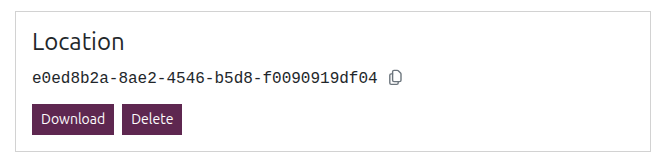
The location widget includes additional action buttons when an AIP is stored
Note
At this time, the Location UUID is shown instead of its display name. This will be fixed in subsequent releases.
AIP workflows and activities
If any workflows have been run since the AIP's deposit in the storage service, Enduro will show related workflows and their outcomes below the AIP details in the Workflow details area.
Workflows will be shown in ascending order, with the most recently run workflow shown at the top. A card with summary information will be shown for each workflow that has been run, including:
- Workflow name
- Workflow status
- Completed timestamp (with an estimated duration next to it)
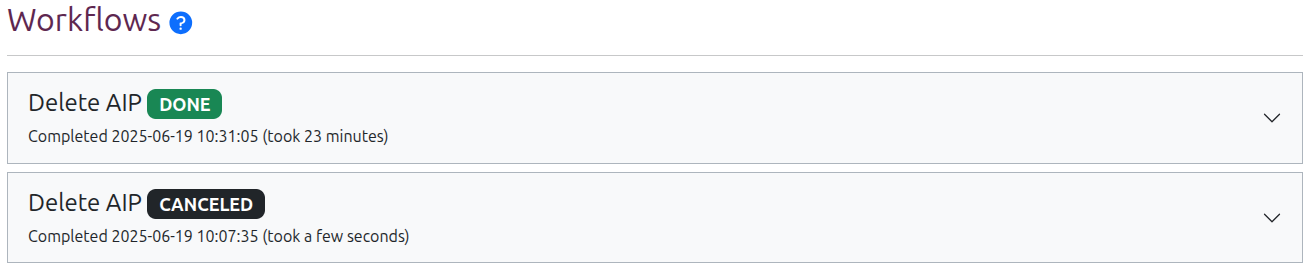
Click anywhere on a header card to expand it and see more information about the tasks run as part of that workflow.
Workflow task status legend
Both workflows and their component tasks have a controlled vocabulary of statuses that can tell you more about the current state or outcome of a given process.
Clicking the blue ( ? ) question mark icon next to the Workflow header will reveal a legend explaining the various task statuses and their meaning:
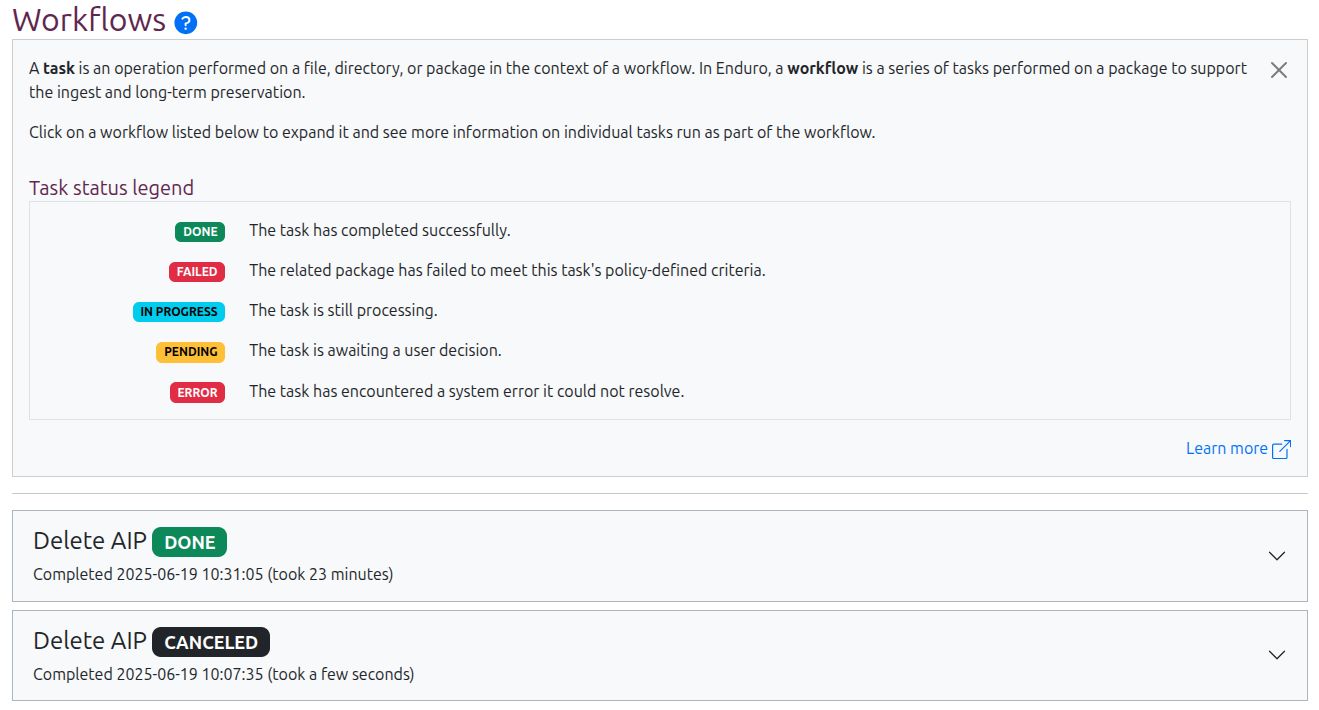
AIP Workflow tasks can have the following statuses:
- DONE: The task has completed successfully
- FAILED: The related package has failed to meet this task's policy-defined criteria
- IN PROGRESS: The task is still processing
- PENDING: The task is awaiting a user decision
- ERROR: The task has encountered a system error it could not resolve
- QUEUED: The task is waiting to start
- UNSPECIFIED: The task has not yet reported a status
Workflows have their own status as well. Most of these are similar to the task statuses, with a few additional statuses:
- QUEUED: The workflow is waiting for an available worker to begin
- CANCELED: The workflow has been canceled by a user
Note
To help operators better understand the cause of an unsuccessful workflow, Enduro uses different statuses for a content failure and a system error. This works the same in both the Ingest and Storage domains. For more information, see:
AIPs also have their own statuses. See: AIP statuses
Workflow tasks
A workflow is a sequence of tasks managed by Enduro. The AIP Workflow details area will list all workflows that have been run against a given AIP in ascending order, with the most recent on the top.
Click anywhere on a workflow header card to expand it and see a list of all tasks run as part of that workflow. Tasks are also shown in ascending order, with the most recent tasks at the top of the list.
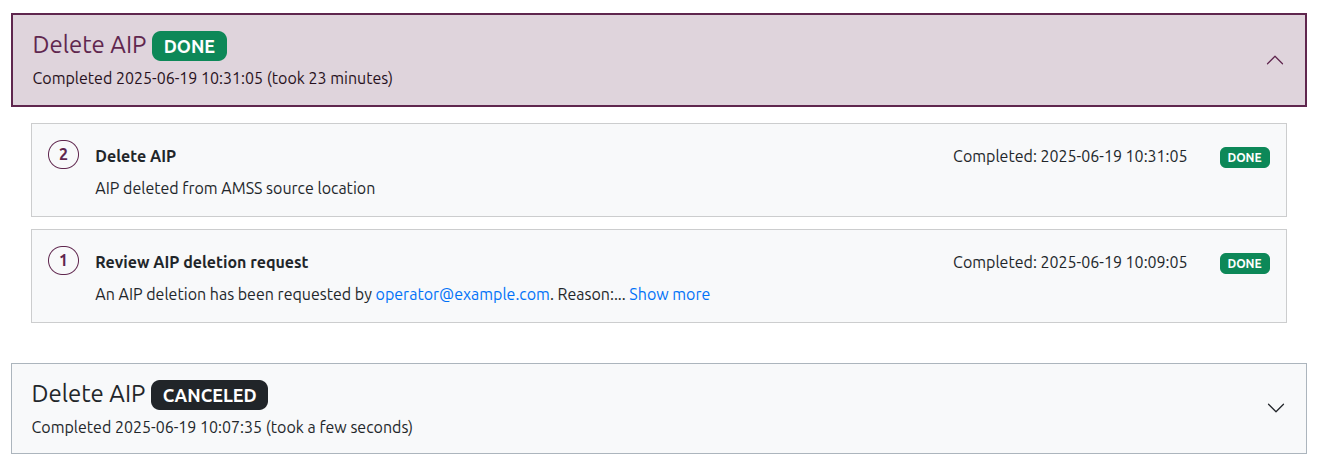
Task rows include:
- A task number assigned by Enduro, indicating the order the task was run in the workflow.
- The task name in bold, helping to explain what activity is being performed.
- A status - see above for details on each task status meaning.
- A time - "Ended" shows when the task ended whenever a completion timestamp is available, regardless of whether its status is done or error. Otherwise, "Started" shows when the task began. A dash is shown if neither timestamp is available
-
A task outcome - a textual description of the activity details in the task. This might include a brief summary of the activity, or in some cases (such as an AIP deletion workflow) it may include a user-input reason. If the task was a failure or error, the outcome details might include information to assist operators in troubleshooting.
If a task outcome description is more than one line of text, the text will be truncated and a "Show more" control will be shown at the end of the first line. You can use the control to expand the task outcome and read the full description.
Pending workflows and tasks
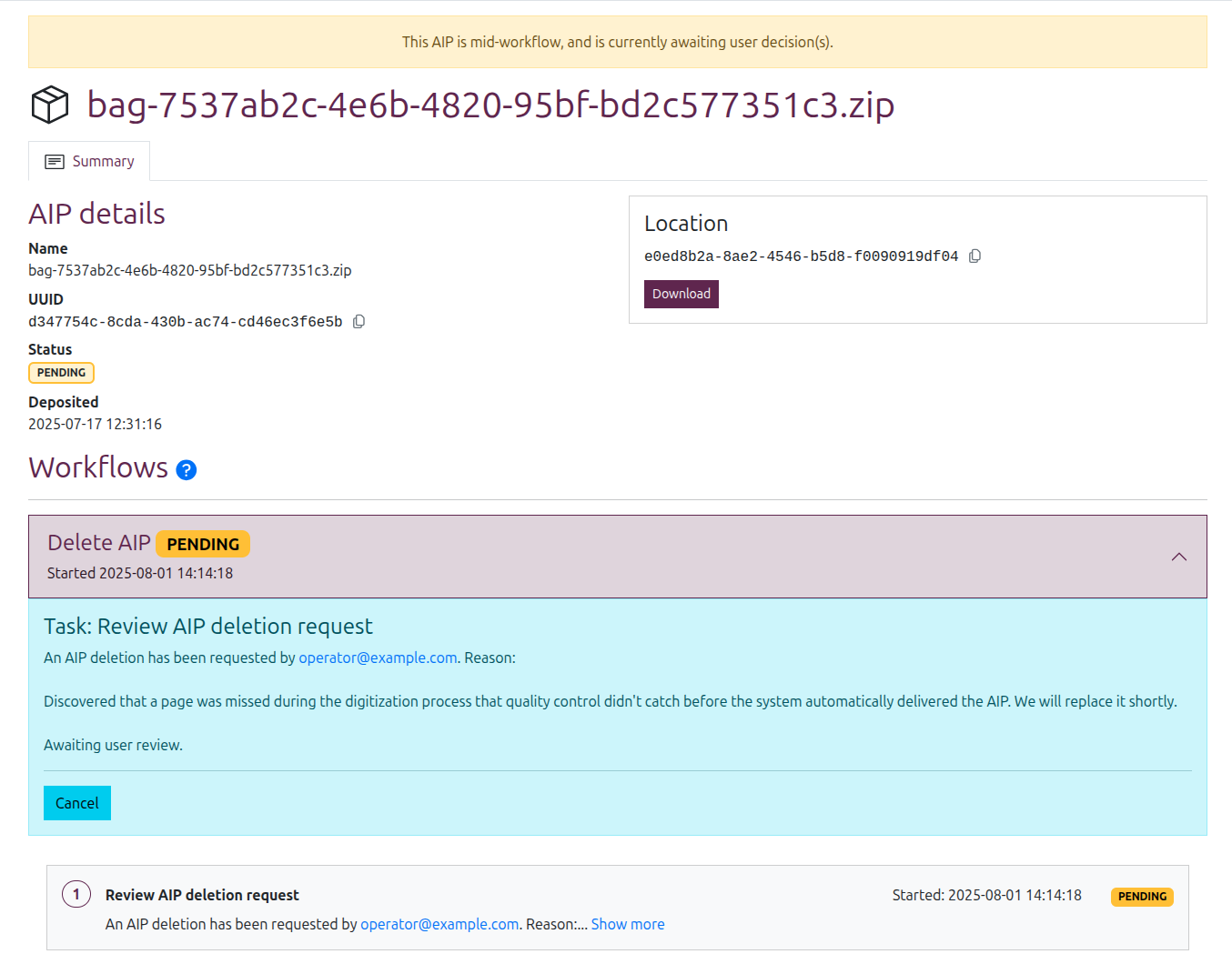
A task and its corresponding workflow are given the PENDING status when a user decision is needed to proceed. For example, the AIP deletion workflow requires a second user with appropriate permissions to review and either approve or deny a deletion request. Consequently when a task in a workflow is pending, the workflow will pause on the current task and no further activity will take place until a decision is input.
An AIP view page will indicate that a workflow is in PENDING status in a number of ways. First, a PENDING notification banner will be shown at the top of the corresponding AIP view page:

Additionally, the AIP status will be updated to PENDING - as will the corresponding workflow status below.
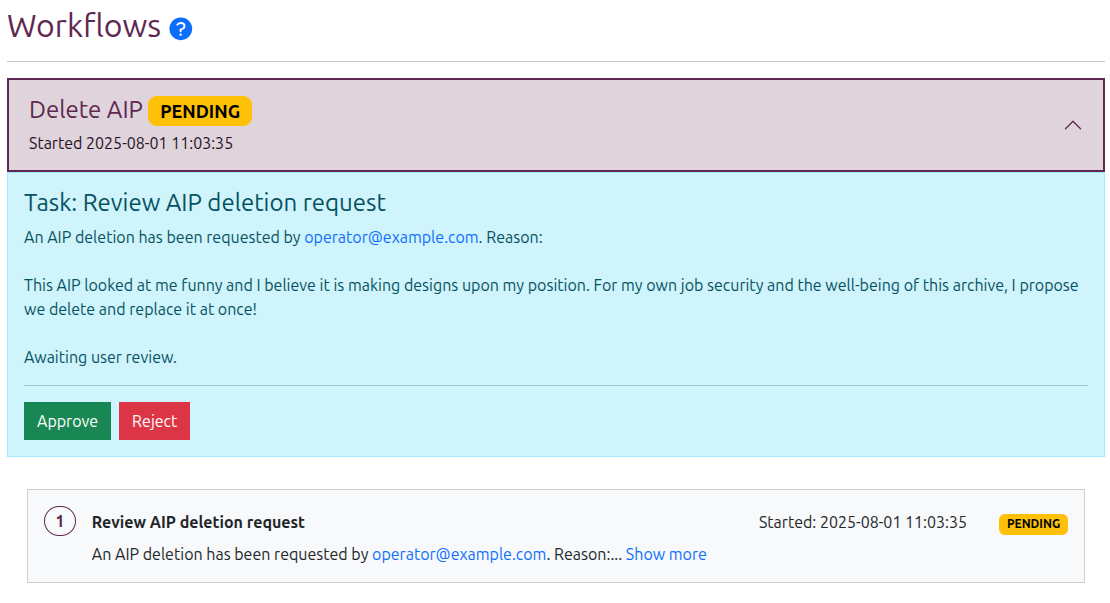
When the affected workflow is clicked and expanded, the details from the related pending task will be shown at the top of the workflow details, along with any input buttons required to resolve the decision needed:
Note
If a user does not have sufficient permissions to input the decision required by the workflow, the related input buttons will not be shown.
In some cases, a pending request can be canceled - in such a case, a "Cancel" button would be shown in the pending details summary area. The option to cancel a pending request is only shown to the user who initiated the request in the first place.
Download an AIP
Operators with sufficient permissions can download a copy of an AIP from its view page.
To download an AIP: click the "Download" button shown in the locations widget on the right side of the AIP view page. This will initiate a download via your web browser. Depending on the size of the AIP, this can take a while - your browser should show the download progress.
The locations widget can be used to download a copy of an AIP
If there is no "Download" button shown under the locations widget:
- Check the AIP status in the AIP details area - the AIP may be deleted, or it may be temporarily unavailable for download if it is part of an ongoing workflow.
- You may not have sufficient user permissions to download the AIP - consult with an administrator.
Note
For security and to preserve the chain of custody, AIP downloads are recorded in Enduro's audit logs.
Delete an AIP
Operators with sufficient permissions can also permanently delete an AIP from storage. For security and to prevent accidental deletions, AIP deletion is a 2-step process, requiring two different users to fully complete.
To delete an AIP: navigate to its view page, and then click the "Delete" button shown under the location widget.
The location widget can be used to permanently delete an AIP
If there is no "Delete" button shown under the locations widget:
- Check the AIP status in the AIP details area - the AIP may already be deleted, or it may be temporarily unavailable for deletion if it is part of an ongoing workflow.
- You may not have sufficient user permissions to delete the AIP - consult with an administrator.
For security and auditing purposes, Enduro requires the user initiating a deletion request to enter a reason for the AIP deletion. When you click the delete button, Enduro will present a pop-up where you can input your reason:
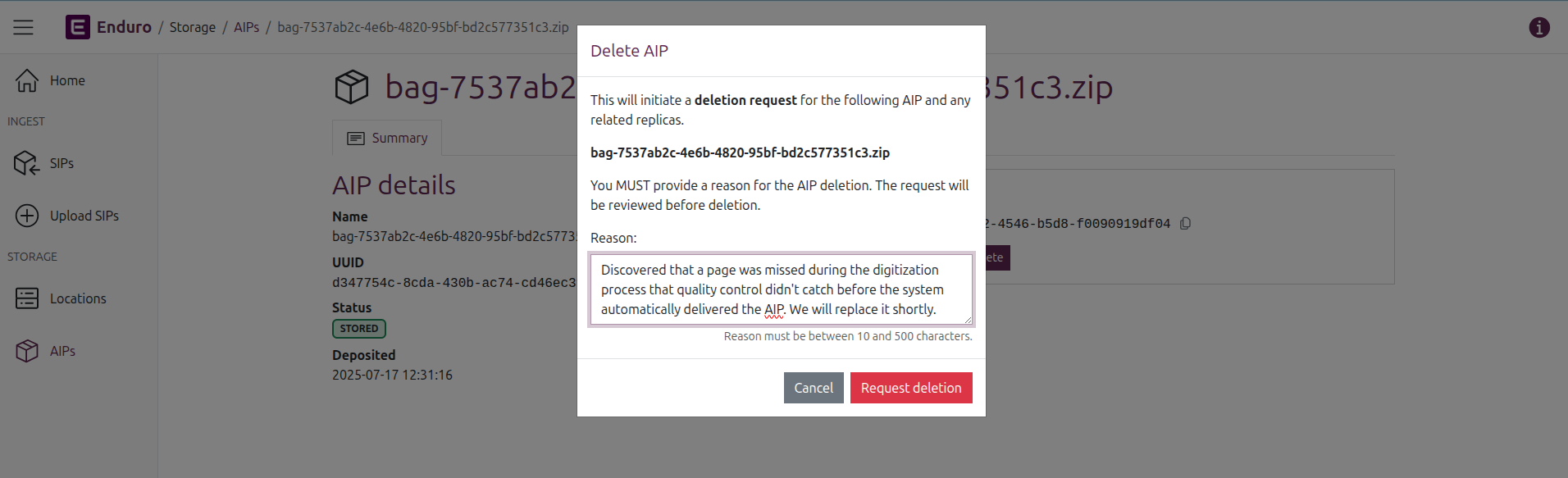
The reason you enter must be between 10-500 characters. If there are less than 10 characters entered Enduro will not let you click the "Request deletion" button, and when the 500 character limit is reached, the pop-up will not allow you to type any more.
You can cancel the deletion request at this stage by clicking the "Cancel" button in the request pop-up, or by simply clicking anywhere outside of the pop-up.
To submit your deletion request and start the workflow, click the "Request deletion" button. Enduro will:
- Immediately update the workflow status and AIP status to PENDING
- Display the PENDING notification banner at the top of page
- Include your reason in the details summary shown below the workflow header when it is expanded, along with a "Cancel" button
Canceling a deletion request
You can cancel your own deletion request by:
- Clicking on the workflow header to expand it and show the tasks and details below
- Clicking the "Cancel" button found in the details summary at the top of the displayed task list
Important
Only the user who initiates a deletion request can cancel it.
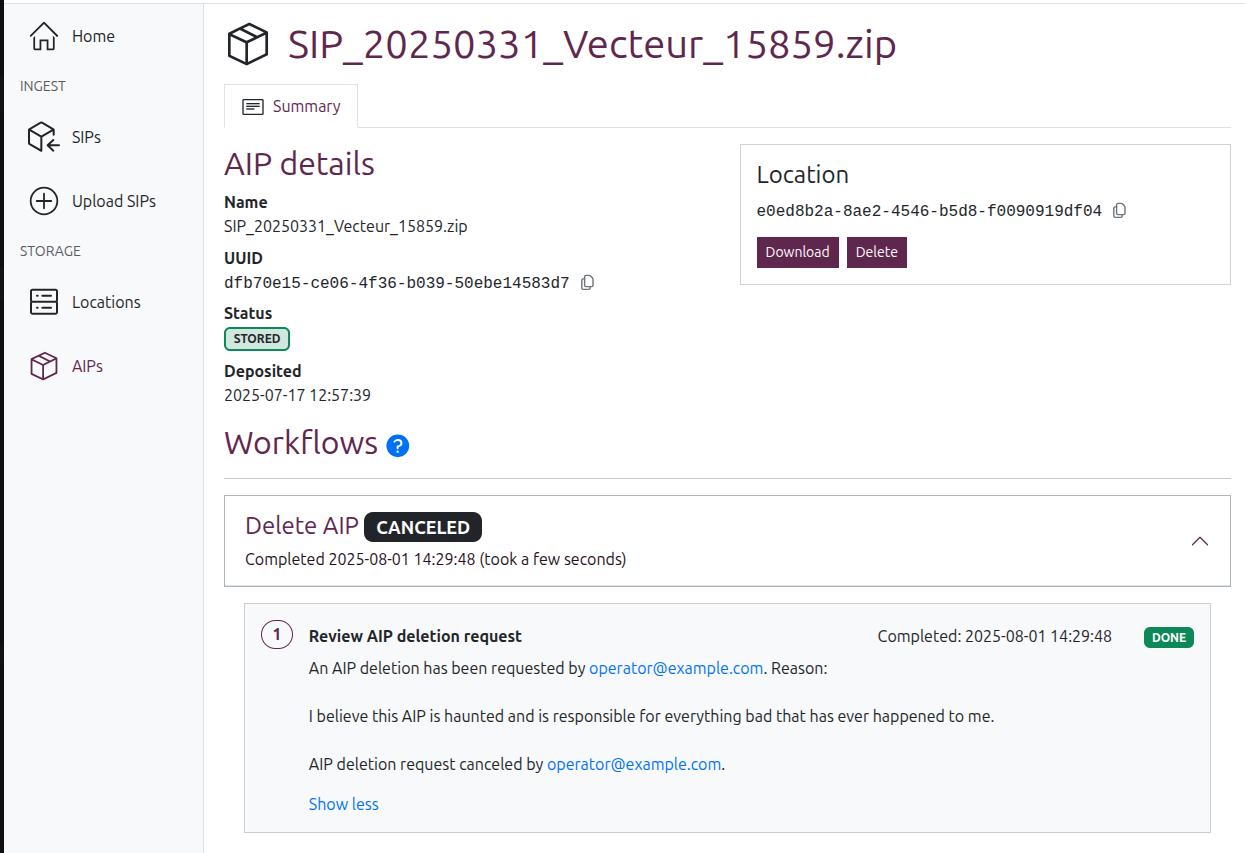
When a deletion request is canceled, the related workflow status will be updated to CANCELED, and the affected AIP status will return to STORED. The original reason included with the request and the identity of the requestor will remain visible in the canceled workflow's details - click the workflow's header card to expand it and see the tasks listed below:
Reviewing a deletion request
Once a deletion request is submitted, another user with sufficient permissions must review it to resolve the PENDING status, either approving or rejecting the request.
Important
You cannot review your own deletion request.
You can find AIPs awaiting a user decision easily from the AIP browse page by using the AIP status filter to limit the results to those AIPs with a PENDING status. Click on a result to navigate to its view page.
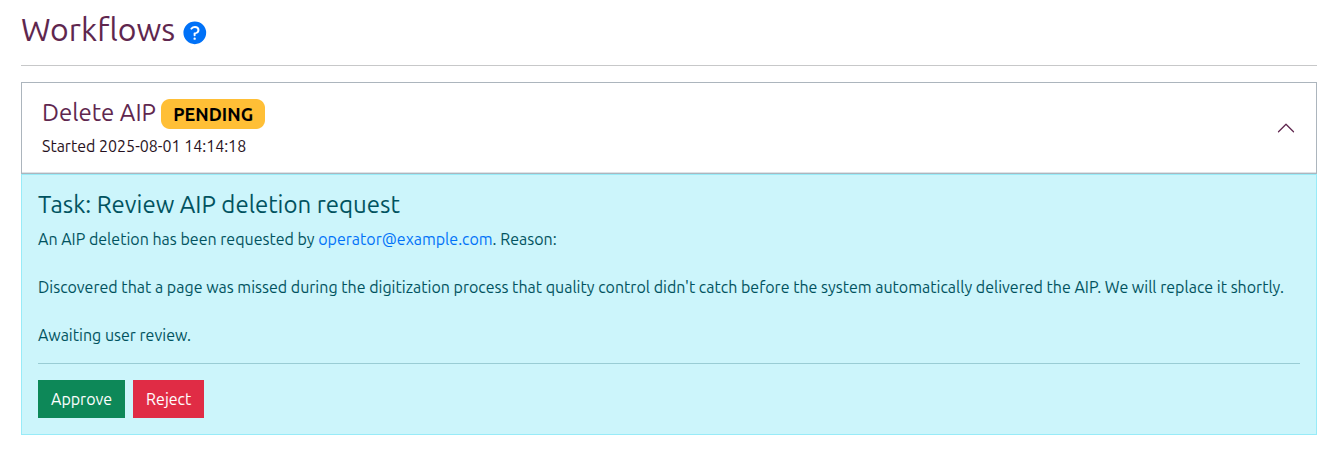
To review a deletion request: scroll down to the workflows area, and click on the pending deletion workflow to expand its details.
The workflow details summary will include the user who submitted the request and the reason they submitted, along with two buttons: "Approve" or "Reject."
Note
How user information is displayed will depend on what information is available from the authentication provider - for more information, see: User filters and authentication configuration
If you cannot see the Approve and Reject buttons, you may not have sufficient permissions - talk to an administrator.
If you reject a deletion request, the related workflow status will be updated to CANCELED, and the affected AIP status will return to STORED. The original reason included with the request and the identity of the requestor will remain visible in the canceled workflow's details.
Meanwhile, if you approve a deletion request:
- The workflow status will be updated to IN PROGRESS and the AIP status will be updated to PROCESSING
- Enduro will proceed to delete the AIP from its current storage location
- If deletion is successful, the workflow status will then update to DONE and the AIP status will update to DELETED
- The location widget will say "AIP deleted" instead of listing a location, and all action buttons will be removed
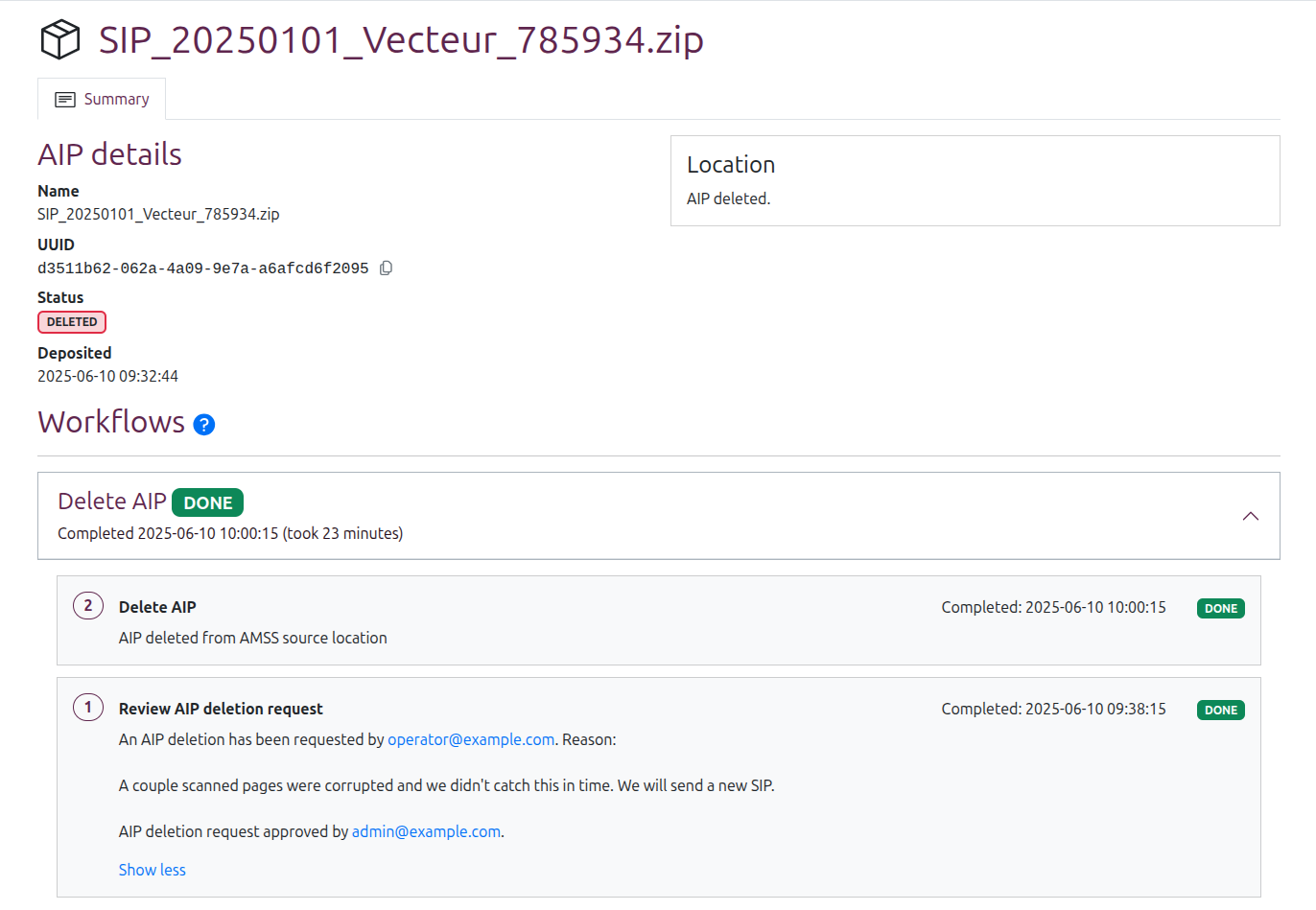
The AIP will remain listed in Enduro and discoverable in AIP search/browse results for auditing and reporting purposes. You can filter AIP browse results to show only deleted AIPs using the AIP status filter.